AI Reads Speech: Turn Talk Streams into Clips
Turn on AI Reads Speech and the AI listens to what is said, picks clips from funny lines, quotes and reactions, and writes titles that describe the moment.
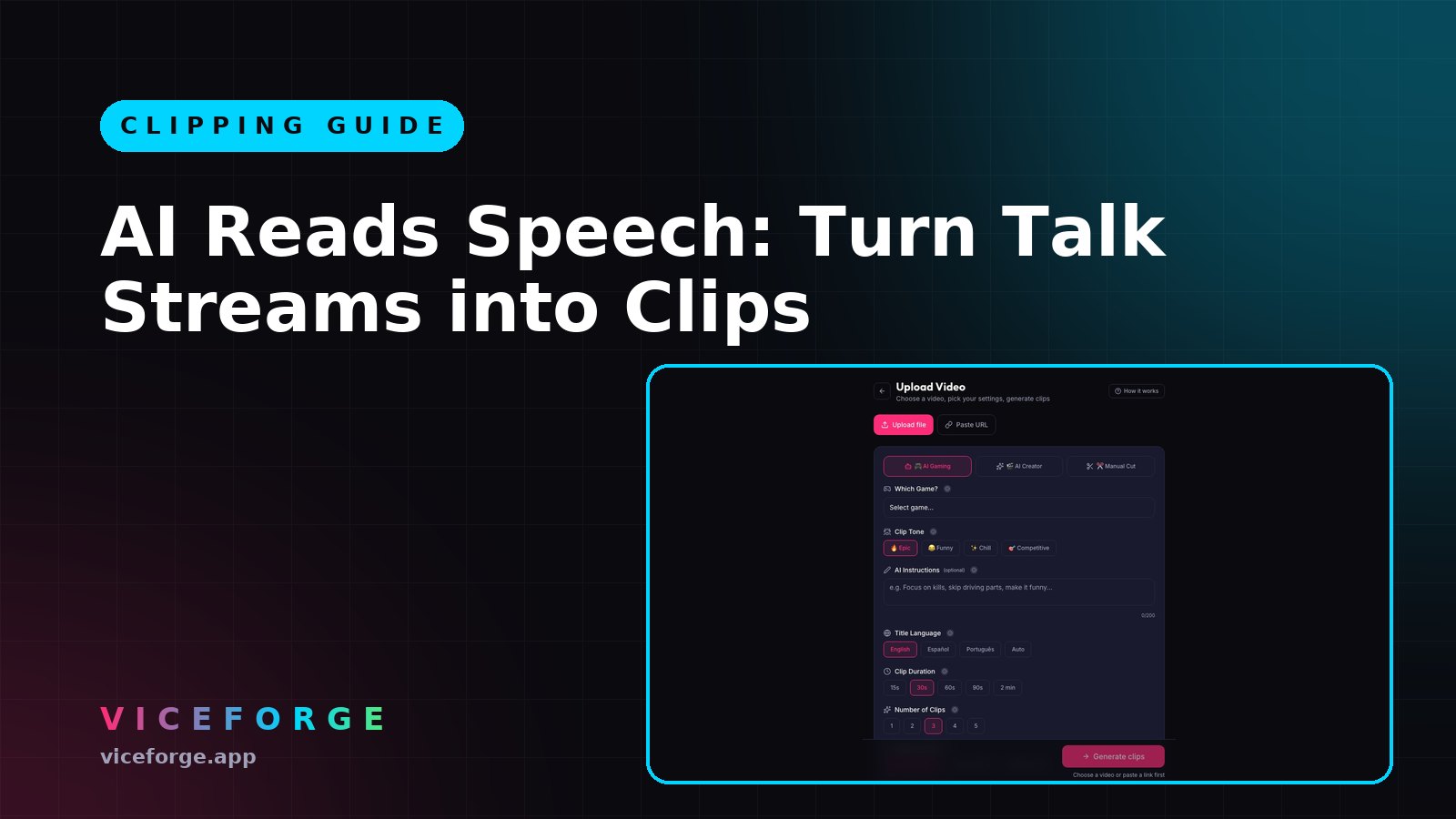
Podcast streams, commentary and talk shows are full of good moments, but finding them means scrubbing through hours of footage. AI Reads Speech listens to what is actually said and picks clips based on funny lines, quotes, reactions, hype and strong statements, without you marking anything.
What AI Reads Speech does
Turn on AI Reads Speech in the ViceForge upload settings and the AI listens to the audio in any language, including Arabic, and uses what is said to find moments worth clipping. Clip titles then describe what was actually said, not just "funny moment #3".
It works in both AI Gaming and AI Creator modes. A podcast episode, a commentary stream or a talk show uploaded with AI Reads Speech on will come back with clips built around the actual lines that made the moment.
How it picks moments
The AI looks for:
- Funny lines and jokes
- Quotes and strong statements
- Reactions and hype
- Swearing and outbursts
It does not just pick random speech. It finds the lines that stand out.
Plans and limits
AI Reads Speech is available on Creator Pro and Creator Elite. Lifetime plans also have it, up to 150 minutes of video per month.
Free and Gamer Pro see it locked in the upload settings.
On Creator Pro and Creator Elite, there is no separate limit. It is part of the plan's normal monthly video minutes:
| Plan | Video minutes per month |
|---|---|
| Creator Pro | 300 |
| Creator Elite | 600 |
| Lifetime | 150 |
Processing speed is the same whether AI Reads Speech is on or off.
Step 1: Upload the video
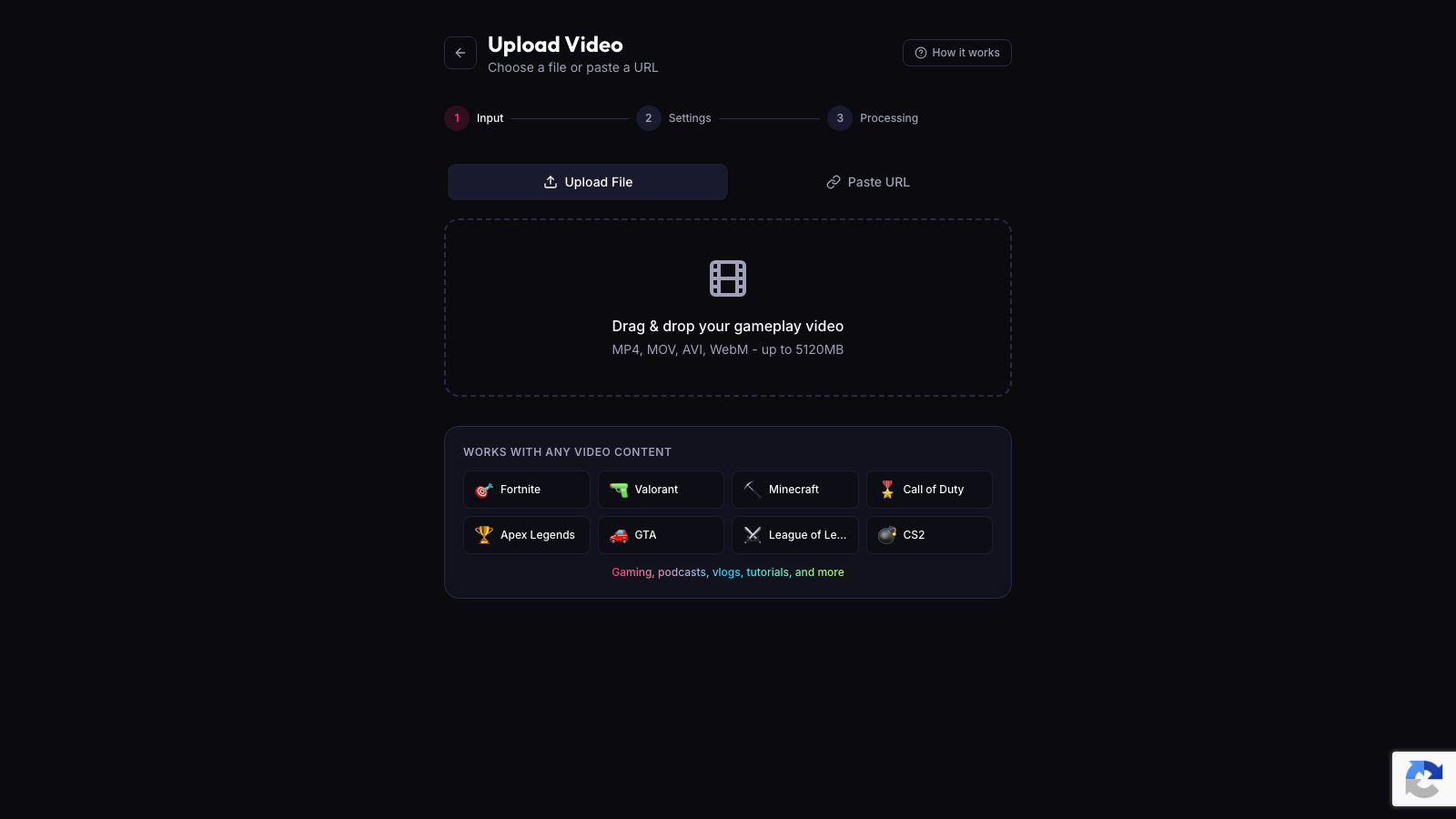
- Go to ViceForge upload.
- Pick your video file or paste a YouTube URL if your plan supports it.
- The video starts uploading in pieces that retry on their own.
Step 2: Choose AI Creator mode
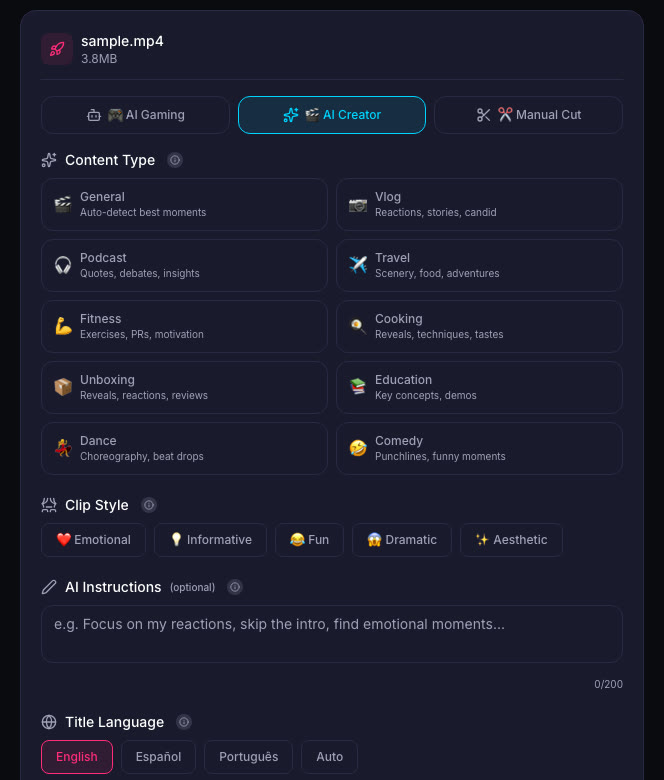
While the video uploads, choose AI Creator from the three modes at the top. This mode is designed for talk, IRL and podcast-style videos.
You can also use AI Reads Speech with AI Gaming mode if your gaming stream has a lot of commentary.
Step 3: Turn on AI Reads Speech
Look for the AI Reads Speech switch in the upload settings and turn it on. Pick your output format (Vertical, Horizontal or Standard), clip length, number of clips and caption style. Then click Generate clips when the upload finishes.
Step 4: Review the clips
Every clip gets a score from 0 to 100 based on the strength of the moment, clip length and how many signals agree. Clips are sorted best first and the top one is marked "Post this first".
The clip titles describe what was said. A clip about a funny story will say what the story was about, not "hilarious reaction".
What it works with
- Podcast episodes
- Commentary streams
- Talk shows
- IRL streams with a lot of talking
- Gaming streams with heavy commentary
If your stream is mostly action and not much talking, AI Gaming mode without AI Reads Speech will work better.
Combine with AI Hook
AI Hook opens each clip with its best moment, then flows into the full build-up. A funny line or reaction becomes the hook, then the clip shows how you got there.
AI Hook is only on Creator Elite. Turn it on in the upload settings, below AI Reads Speech. Read more in AI Hook: Open with Your Peak Moment, Then Show the Build-Up.
Quick checklist
- Creator Pro or Creator Elite plan
- Video uploaded to ViceForge
- AI Creator mode chosen
- AI Reads Speech switch turned on
- Output format and clip settings picked
- Clips reviewed and edited if needed
Turn streams into clips faster
Download your Twitch VOD or YouTube recording the same night you stream. Upload it to ViceForge with AI Reads Speech on. The clips are ready when processing finishes, titled by what was actually said, and you post the best one first.
No more scrubbing through two hours of footage to find the one line that made chat explode.
Sources
- ViceForge, Pricing and plans
Written with AI assistance, then fact-checked and edited by Predrag Mitrovic.
Turn your next stream into Shorts
Upload a VOD or gameplay recording and ViceForge finds the best moments, cuts vertical clips and adds captions.
Clip a video with ViceForgeMore from Guides
AI Hook: Open Strong, Keep Viewers to the End
AI Hook opens each clip with the peak moment, then loops back to show the build-up. Works on uploads and YouTube links.
AI Hook: Cold Open Your Best Moment, Keep Viewers Watching
AI Hook cuts your peak moment first, then flows into the full story. Adjust hook timing and on-screen text in the editor.
AI Hook: Open with Your Peak Moment, Keep Viewers
Cut your best moment first, then show the build-up. AI Hook keeps viewers watching by opening with the payoff.