AI Hook: Open with Your Peak Moment, Then Show the Build-Up
Turn on AI Hook to start each clip with the best 1-2 seconds, then replay the full moment. Creator Elite only. Here is how to set it up.
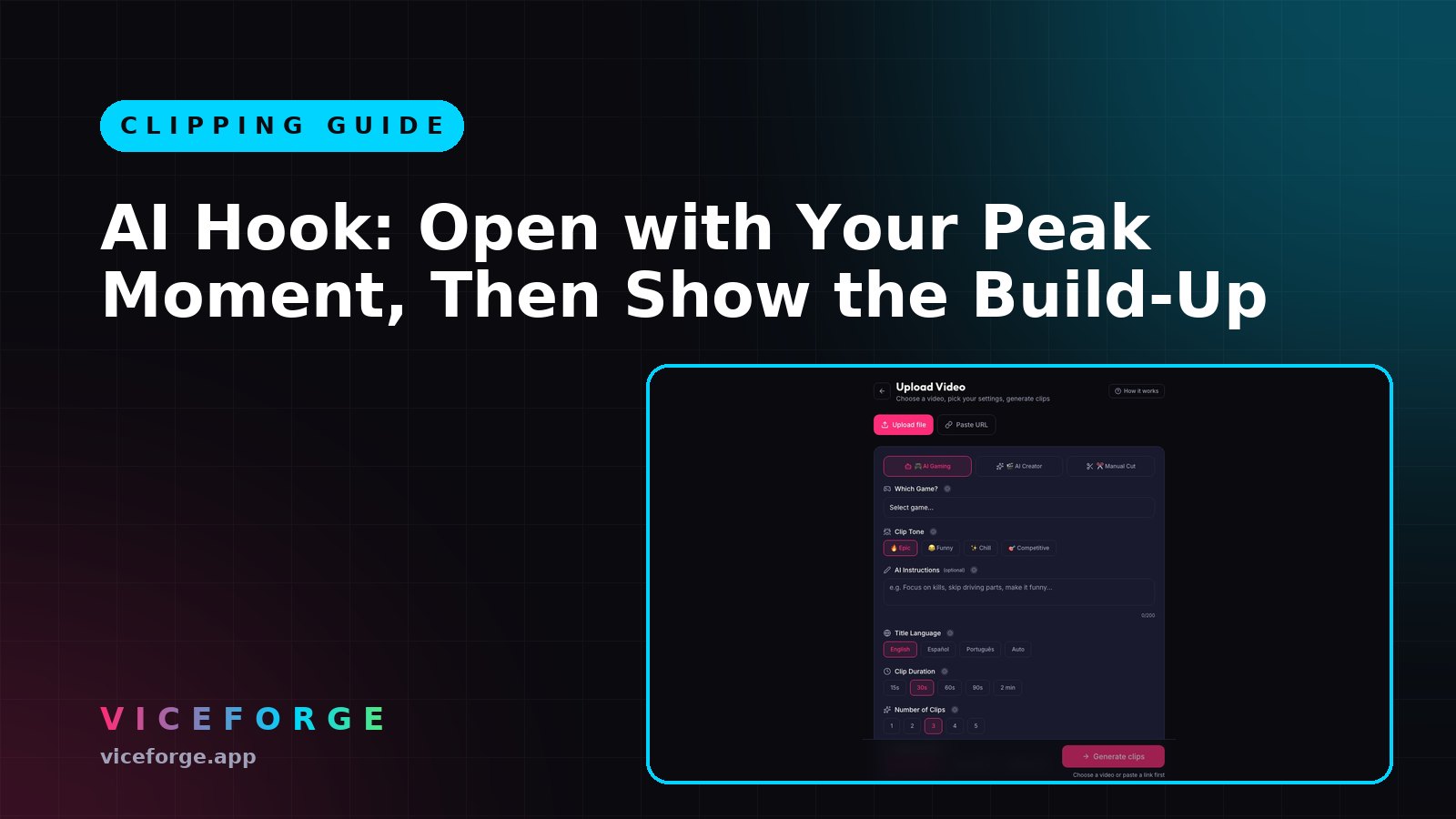
AI Hook opens your clip with the peak moment, then replays the full build-up. Viewers see the best 1-2 seconds first, stay to watch how it happened, and the algorithm counts the full watch time. Here is how to turn it on and adjust the timing.
What AI Hook does
The clip starts with the peak (the kill, the punchline, the crash), then jumps back to show the full moment from the build-up. The hook is 1 to 2 seconds. The main part is the complete moment, including the peak again, so viewers see the peak twice: once in the hook, once in context.
If the AI finds no clear peak in a clip, the clip stays normal with no hook.
Plans and limits
AI Hook works in AI Gaming and AI Creator modes, on uploaded videos and on YouTube URL imports.
Free, Gamer Pro and Creator Pro do not have it.
Turn on AI Hook
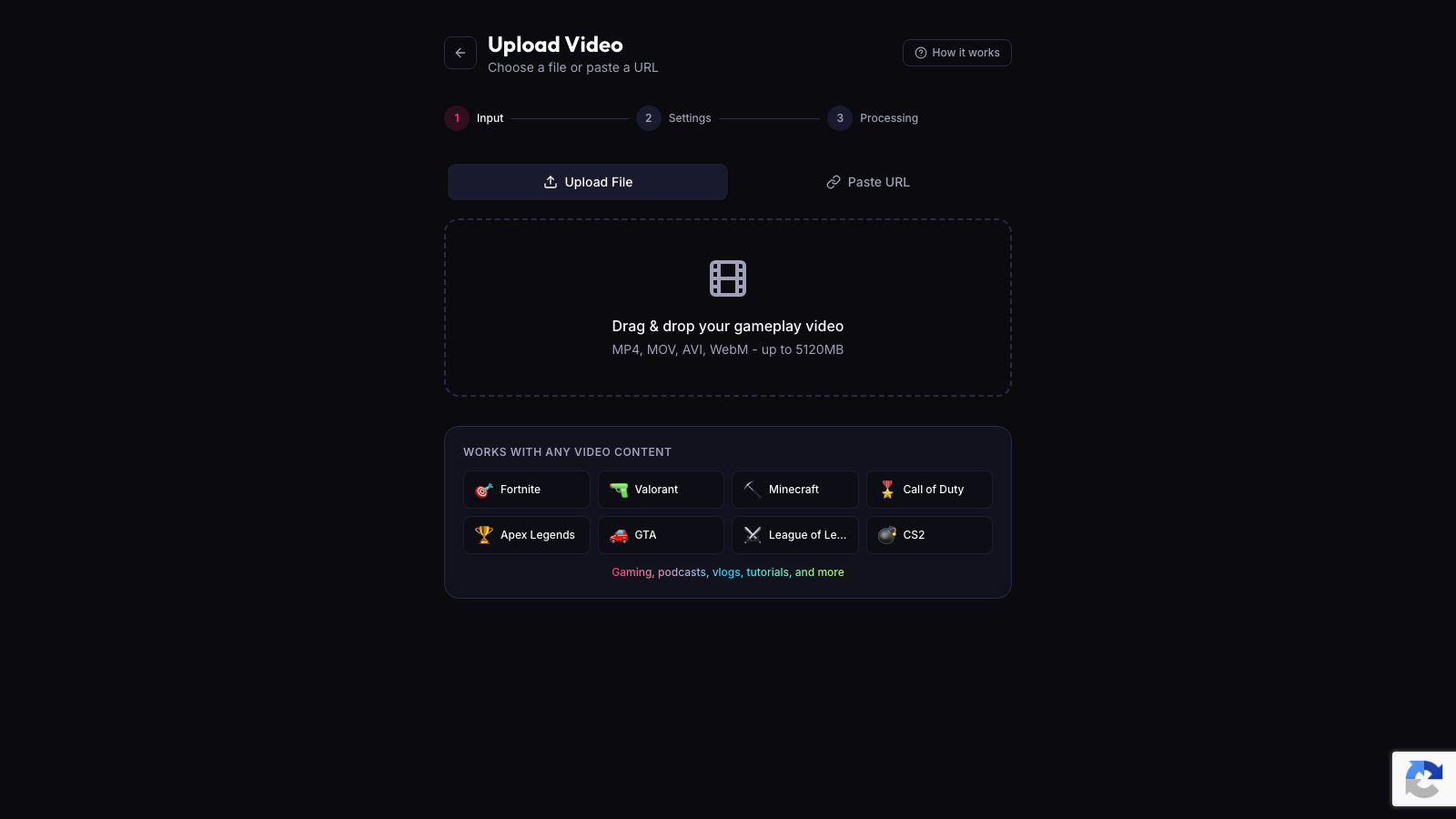
- Go to ViceForge upload.
- Pick your video or paste a YouTube URL.
- Choose AI Gaming or AI Creator.
- Scroll to the bottom of the settings.
- Turn on AI Hook.
The switch is off by default. Turn it on per video.
Optional hook text
You can add a short line of text on screen over the hook, for example "Wait for it..." or "Watch this". The default is "Wait for it...". Up to 80 characters.
To turn it on:
- In the upload settings, turn on Show hook text.
- After the clips are ready, open a clip in the editor.
- Edit the text in the hook text field.
If you leave Show hook text off, the hook plays with no text.
Adjust the hook timing in the editor
Every clip with a hook has two parts in the editor: the hook and the main part. Each part has its own start and end time.
To adjust:
- Open the clip.
- Find the hook timeline at the top.
- Drag the start or end marker, or use the +0.1 s and +1 s buttons.
- Do the same for the main part below.
The hook and the main part are independent. You can shorten the hook to 1 second, or extend the main part to show more of the build-up.
Re-editing a clip with a hook
When you re-edit a clip that already has a hook, ViceForge keeps the original resolution and follows your facecam in vertical format. The facecam stays in frame in both the hook and the main part.
When to use AI Hook
AI Hook works best when the peak moment is obvious: a headshot, a jump scare, a one-liner that lands, a crash. If your video is all build-up with no single peak, the AI may not add a hook, and that is fine.
Use it for:
- Gaming clips with kills, fails, clutches or big reactions.
- Talk and podcast clips with a strong statement or a punchline.
- IRL clips with a surprise or a payoff.
Do not use it for tutorials, walkthroughs or clips where the context matters more than the peak.
Quick checklist
- AI Gaming or AI Creator mode.
- Turn on AI Hook in the upload settings.
- Optional: turn on Show hook text and edit the line per clip.
- After the clips are ready, adjust the hook and main part timing in the editor.
Combine AI Hook with AI Reads Speech
If you stream with commentary, turn on both AI Hook and AI Reads Speech. AI Reads Speech listens to what you say and picks moments with funny lines, hype or strong reactions. AI Hook then opens those clips with the peak line, so viewers hear the punchline first and stay to see the setup.
Sources
Written with AI assistance, then fact-checked and edited by Predrag Mitrovic.
Turn your next stream into Shorts
Upload a VOD or gameplay recording and ViceForge finds the best moments, cuts vertical clips and adds captions.
Clip a video with ViceForgeMore from Guides
AI Reads Speech: Pick Clips from What's Actually Said
Turn on AI Reads Speech and ViceForge picks moments based on what you say: funny lines, strong opinions, reactions. Works in any language.
AI Reads Speech: Pick Better Moments from Talk and Podcast Clips
ViceForge's AI Reads Speech listens to what you say in any language and picks clips based on funny lines, quotes and reactions instead of just visuals.
How to Avoid Copyright Claims When Turning VODs into Shorts
Music in the background, game soundtracks and the one-minute rule on YouTube. Where claims come from when you turn streams into Shorts, and how to keep your clips online.