YouTube Moves Dislike Button for Creators: What Changes for Your Clips
YouTube is moving the dislike button into the menu on your own videos. Viewers still see it in the normal spot. Here's what changes for your clips.
YouTube is rolling out a new interface for creators where the dislike button on your own videos moves into the three-dot menu. Regular viewers still see the button in the usual place. This changes what you see when you check your own uploads.
What is changing
YouTube is rolling out a new UI for creators on their uploaded videos. When you open one of your own videos, the dislike button will be behind the three-dot menu instead of next to the like button. Viewers watching your video still see the dislike button in its normal spot and can click it without extra steps.
Full dislike counts remain in YouTube Studio under analytics, where they have been since YouTube hid public dislike counts in November 2021.
The new UI is rolling out to creators in the coming weeks.
Why YouTube is doing this
YouTube removed public dislike counts in 2021 to reduce targeted dislike attacks and harassment, especially against smaller creators. The button stayed visible so viewers could still give feedback, but the number was hidden from everyone except the creator.
This new change takes the same approach one step further for creators viewing their own videos. The dislike button is still there, just moved.
YouTube also removed the dislike button from Shorts earlier in 2026.
What this means for your clip strategy
Viewers still see the dislike button, and they can still click it. The only difference is that when you check your own video, you have to open the menu to see the button.
Your analytics in YouTube Studio still show the full dislike count. Use that number to track which clips or topics get negative reactions.
If a clip gets more dislikes than usual:
- Check the title and thumbnail. Clickbait or misleading visuals drive dislikes.
- Watch the first 3 seconds. A slow start or confusing opening loses viewers fast.
- Look at the captions. Errors or bad timing can annoy people.
- Check the audio. Loud music, distortion or unbalanced levels hurt retention.
How to check dislikes on your clips
- Open YouTube Studio.
- Go to Content.
- Click a video.
- Open Analytics.
- Find the engagement section. Likes and dislikes are listed there.
Compare dislikes across your clips to find patterns.
Should you change how you edit or promote Shorts?
Focus on the same things that have always mattered:
- Strong first 3 seconds.
- Clear captions that match what is said.
- A title that describes the clip without overselling it.
- Audio that is loud enough but not distorted.
If you are clipping from a long stream or VOD, upload the file to ViceForge and choose AI Gaming or AI Creator. The tool helps you find strong moments and add captions, and you can pick vertical output to optimize for Shorts.
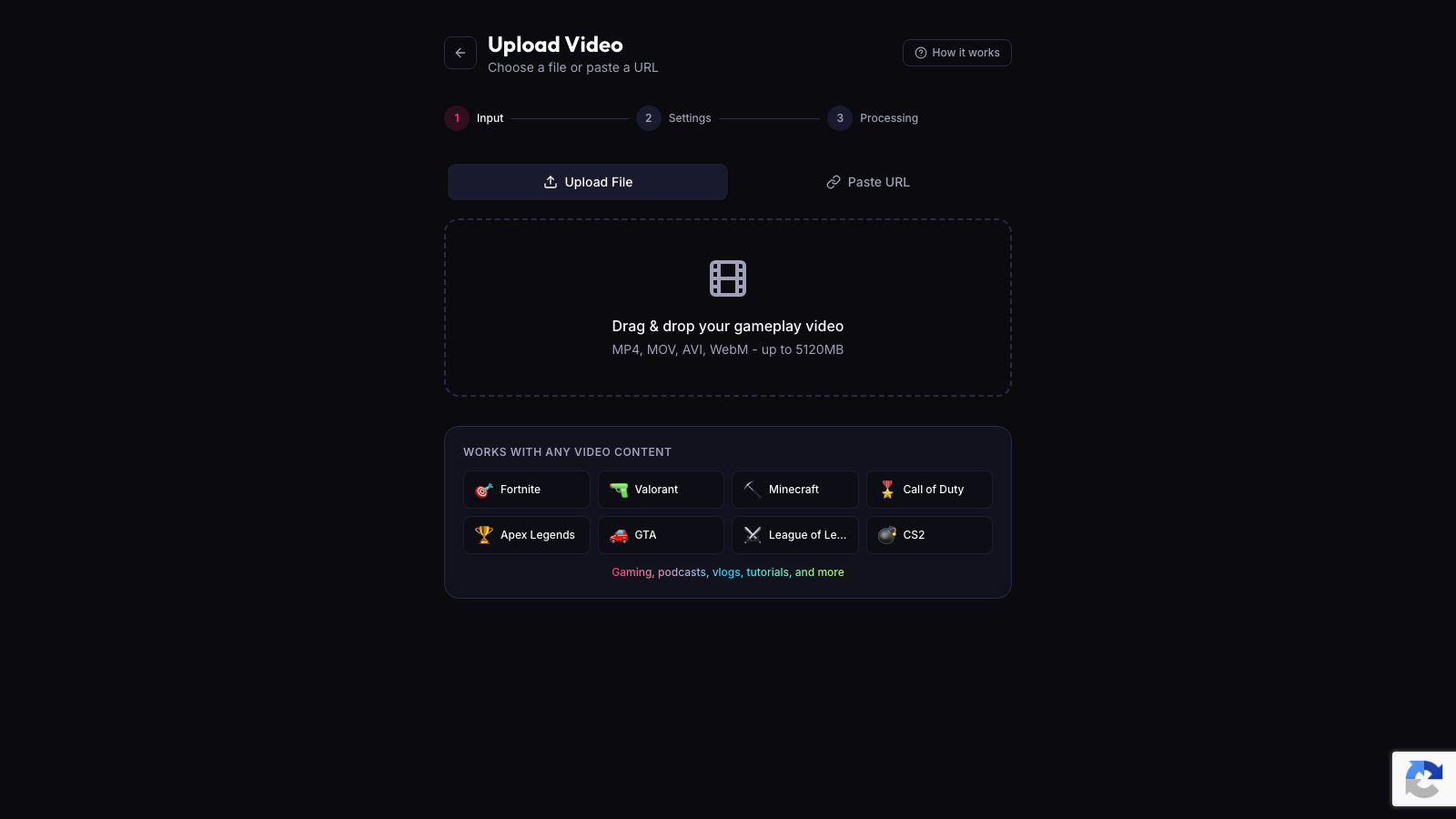
Every clip gets a score from 0 to 100 based on the strength of the moment, and the top clip is marked "Post this first". Check the dislike count in Studio after you post it. If it is higher than your average, adjust the next clip.
Quick checklist
- The dislike button is moving into the menu on your own videos only.
- Viewers still see it in the normal spot.
- Full dislike counts stay in YouTube Studio analytics.
- Use the dislike count to spot problems with titles, thumbnails, captions or audio.
- No changes needed to how you edit or promote clips.
Sources
Written with AI assistance, then fact-checked and edited by Predrag Mitrovic.
Turn your next stream into Shorts
Upload a VOD or gameplay recording and ViceForge finds the best moments, cuts vertical clips and adds captions.
Clip a video with ViceForgeMore from Guides
AI Reads Speech: Turn Talk Streams into Clips
Turn on AI Reads Speech and the AI listens to what is said, picks clips from funny lines, quotes and reactions, and writes titles that describe the moment.
AI Hook: Open Strong, Keep Viewers to the End
AI Hook opens each clip with the peak moment, then loops back to show the build-up. Works on uploads and YouTube links.
AI Hook: Cold Open Your Best Moment, Keep Viewers Watching
AI Hook cuts your peak moment first, then flows into the full story. Adjust hook timing and on-screen text in the editor.