Twitch Dual Format Explained: Vertical and Horizontal at Once
Since June 2026, every Twitch streamer can broadcast horizontal and vertical at the same time. How to set it up in OBS, what you get, and the 7-day catch on vertical VODs.
In June 2026, Twitch opened Dual Format streaming to all streamers. You broadcast one stream, and viewers get both a horizontal and a vertical version. Phone viewers see a proper vertical stream instead of a tiny 16:9 box. Here is what it does and how to set it up.
What Dual Format does
- You stream horizontal and vertical at the same time.
- Clips and VODs are available in both versions.
- It is open to all streamers, not just Partners.
How to set it up in OBS
Dual Format uses Twitch's Enhanced Broadcasting:
- In OBS, go to Settings > Stream.
- Turn on Enhanced Broadcasting (Multitrack Video).
- Add a second canvas for vertical. Twitch's guide uses the Aitum Vertical plugin for this.
- Build your vertical scene: gameplay, facecam, chat and alerts arranged for 9:16.
- Go live. Twitch receives both versions.
Support for consoles streaming natively has not been confirmed, so plan on a PC with OBS.
Quality options
Twitch announced alongside this:
- 1080p AVC up to 7.5 Mbps,
- 1440p (2K) HEVC up to 9 Mbps, for Partners and Affiliates.
The catch: vertical VODs expire in 7 days
The vertical VOD expires after 7 days, no matter your account type. If you want to keep vertical content from a stream, download or clip it within the week.
Does Dual Format replace clipping?
Not really. Dual Format gives you a vertical stream. Shorts, TikTok and Reels need short clips: 30 to 60 seconds, starting in the middle of the action, with captions. Someone still has to find those moments in a three-hour broadcast.
Dual Format does make one thing easier: if your vertical scene is already well laid out, the vertical clips from it look good without extra cropping.
Without Dual Format
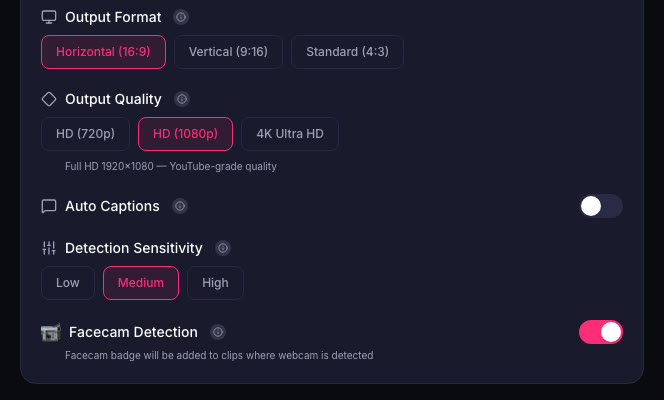
If you do not use OBS, or you stream from a console, you can still get vertical clips. Download your VOD and upload it to ViceForge. With Facecam Detection and Vertical (9:16) output, the crop keeps your webcam in frame, and captions are added automatically.
Quick checklist
- Update OBS and turn on Enhanced Broadcasting.
- Add a vertical canvas and build a 9:16 scene.
- Facecam visible, chat and alerts out of the way.
- Download or clip vertical VODs within 7 days.
Sources
- Twitch Blog: Dual Format announcement (June 17, 2026)
- Twitch Help: Video on demand
Written with AI assistance, then fact-checked and edited by Predrag Mitrovic.
Turn your next stream into Shorts
Upload a VOD or gameplay recording and ViceForge finds the best moments, cuts vertical clips and adds captions.
Clip a video with ViceForgeMore from Guides
How to Avoid Copyright Claims When Turning VODs into Shorts
Music in the background, game soundtracks and the one-minute rule on YouTube. Where claims come from when you turn streams into Shorts, and how to keep your clips online.
Captions for Gaming Clips: Styles That Keep Viewers Watching
Many people scroll short-form feeds with sound off. Why captions matter for gaming clips, where to place them so they do not cover the action, and which styles fit which games.
How to Find the Best Moments in a Long Stream
A four-hour stream might hold five clips worth posting. Signals that point to them, a manual method that works, and how AI finds them by watching and listening.