How to Avoid Copyright Claims When Turning VODs into Shorts
Music in the background, game soundtracks and the one-minute rule on YouTube. Where claims come from when you turn streams into Shorts, and how to keep your clips online.
Turning a stream into Shorts is the fastest way to reach new viewers. It is also how many streamers get their first copyright claim, often for a song they barely noticed in the background. Here is where claims come from and how to avoid them.
Where claims come from
1. Music you played on stream. Spotify in the background, a song in a break, a music alert. This is the most common source.
2. Licensed music inside games. Many games have licensed songs on radio stations or in soundtracks. YouTube says that music owners can claim licensed music in games, even if the game publisher is fine with your video.
3. Gameplay itself. YouTube allows game publishers to claim gameplay through Content ID. Most do not, but some do.
4. Other people's content. Videos, memes and clips you showed on stream.
How each platform reacts
YouTube Shorts: a Short longer than 1 minute with any Content ID claim is blocked worldwide. There is no strike, and it comes back if the claim is released. Shorts of 60 seconds or less with a claim are not automatically blocked worldwide.
Twitch: Twitch scans VODs for copyrighted audio. It mutes the affected parts and deletes linked clips. Muting does not protect you from DMCA notices. A muted VOD downloads muted.
How to avoid claims
While streaming:
- No copyrighted music in the background.
- Turn down in-game radio, or pick stations without licensed songs if the game has them.
- Do not play other people's videos with sound.
While clipping:
- Keep Shorts at 60 seconds or less if there is any chance of music.
- Cut around songs. Start or end the clip before the music.
- Talk over the gameplay. Your commentary makes it your content.
After uploading:
- Check YouTube Studio for claims.
- If a Short is claimed, trim the claimed part or replace the audio.
Choose clip length up front
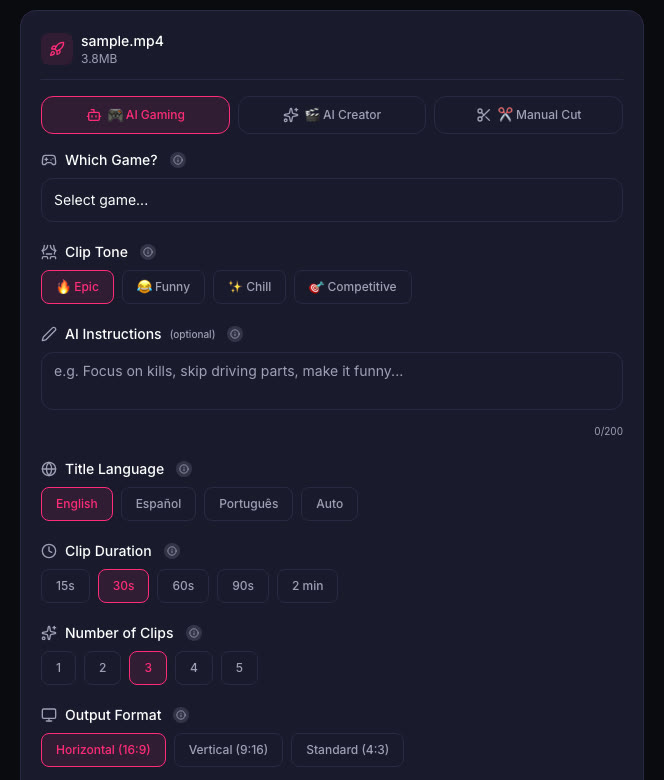
In ViceForge you set the clip duration before the AI cuts your VOD. Choosing 30 to 60 seconds keeps your Shorts under the one-minute line. You can review, edit or delete each clip before downloading, so a clip with music in it never has to go out.
Sources
- YouTube Help: Shorts longer than 1 minute and Content ID
- YouTube Help: Video game content and Content ID
- Twitch Help: Copyrighted audio warnings
Written with AI assistance, then fact-checked and edited by Predrag Mitrovic.
Turn your next stream into Shorts
Upload a VOD or gameplay recording and ViceForge finds the best moments, cuts vertical clips and adds captions.
Clip a video with ViceForgeMore from Guides
Captions for Gaming Clips: Styles That Keep Viewers Watching
Many people scroll short-form feeds with sound off. Why captions matter for gaming clips, where to place them so they do not cover the action, and which styles fit which games.
How to Find the Best Moments in a Long Stream
A four-hour stream might hold five clips worth posting. Signals that point to them, a manual method that works, and how AI finds them by watching and listening.
How to Clip a Twitch Stream from a VOD
Three ways to turn a past Twitch broadcast into clips: Twitch Clips, the Highlighter, and downloading the VOD for vertical Shorts. Limits, steps and when to use each.