How to Find the Best Moments in a Long Stream
A four-hour stream might hold five clips worth posting. Signals that point to them, a manual method that works, and how AI finds them by watching and listening.
The hardest part of clipping is not editing. It is finding the moments. A four-hour stream can hold five clips worth posting, and watching all four hours again to find them is not realistic if you stream several times a week.
Here is how to find good moments faster, by hand or with AI.
What a good moment looks like
Good clips almost always have at least one of these:
- Something happens on screen. A kill, a crash, a chase, a big win, a fail.
- The sound changes. Explosions, a loud voice, laughter, chat sound alerts.
- You react. You shout, laugh, go quiet, lean into the camera.
- There is a story in under a minute. Setup, surprise, payoff.
The best clips have several of these at once: action on screen and your reaction and a sound spike.
The manual method
1. Mark moments while live. Many streamers use a hotkey or a stream deck button to drop a marker. Even a note on paper with the time helps.
2. Watch chat activity. When chat explodes, something happened. Twitch clips made by viewers are a strong hint too.
3. Look at the audio waveform. In an editor, peaks in the waveform often mark loud reactions or explosions. Jump between peaks instead of watching everything.
4. Skim at higher speed. At 2x you can still see action and hear reactions.
5. Cut wide, then trim. Take 90 seconds around a moment, then trim to the best 30 to 60.
This works, but for a four-hour stream it still takes an hour or more.
How AI finds moments
ViceForge does the same thing an experienced editor does, using four signals together:
- Vision: what happens on screen.
- Audio: sound spikes, voices, reactions.
- Facecam: reactions on your webcam.
- Moment grouping: joining nearby signals into one clip instead of cutting a moment in half.
In AI Gaming mode, you pick the game, and the AI uses a profile for it (there are over 100 game profiles), because a good moment in a shooter looks different from one in a racing game. AI Creator mode is for talk, IRL and podcast-style streams.
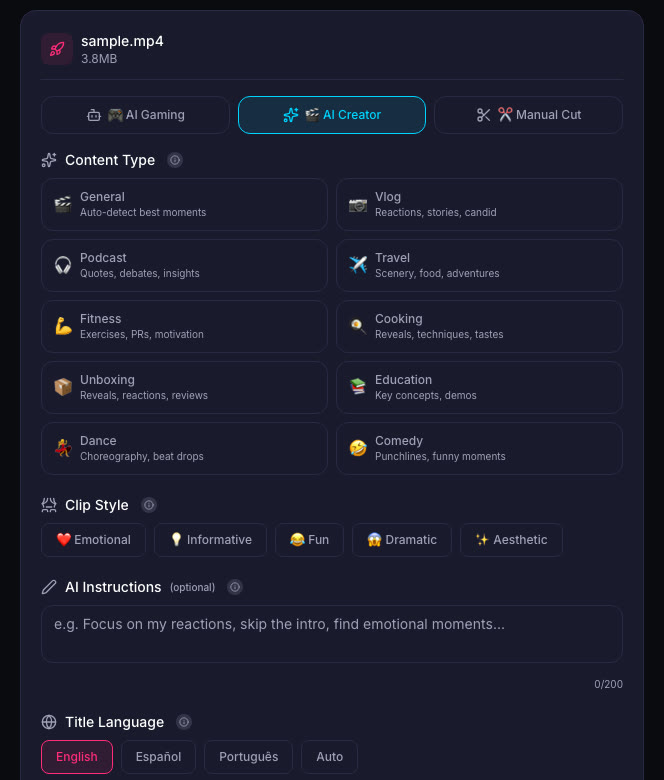
You choose how many clips you want and how long they should be, then review the results. Keep the best, delete the rest.
Mix both
The best workflow combines both approaches:
- Mark the moments you know are great while live.
- Let the AI find the rest.
- Review everything, and post the top few.
Sources
- Twitch Help: Video on demand
- Twitch Developers: Clips API
Written with AI assistance, then fact-checked and edited by Predrag Mitrovic.
Turn your next stream into Shorts
Upload a VOD or gameplay recording and ViceForge finds the best moments, cuts vertical clips and adds captions.
Clip a video with ViceForgeMore from Guides
How to Avoid Copyright Claims When Turning VODs into Shorts
Music in the background, game soundtracks and the one-minute rule on YouTube. Where claims come from when you turn streams into Shorts, and how to keep your clips online.
Captions for Gaming Clips: Styles That Keep Viewers Watching
Many people scroll short-form feeds with sound off. Why captions matter for gaming clips, where to place them so they do not cover the action, and which styles fit which games.
How to Clip a Twitch Stream from a VOD
Three ways to turn a past Twitch broadcast into clips: Twitch Clips, the Highlighter, and downloading the VOD for vertical Shorts. Limits, steps and when to use each.