Twitch Clips vs Highlights vs Past Broadcasts
Three kinds of Twitch video, three different rules. How long each one lasts, who can make it, what counts toward the 100-hour limit and what to use for growth.
Twitch has several types of video, and they behave very differently. Some disappear after a week, some stay forever, some count toward a storage limit. Knowing the difference saves you from losing your best moments.
The quick comparison
| Past Broadcast (VOD) | Highlight | Clip | Upload | |
|---|---|---|---|---|
| What it is | The full saved stream | A section you cut from a VOD | A 5 to 60 second moment | A video you upload |
| How long it stays | 7, 14 or 60 days | Until you delete it | Until you delete it | Until you delete it |
| Who can make it | Automatic, if storage is on | You | You and viewers | Affiliates and Partners |
| Counts toward 100 hours | No | Yes | No | Yes |
Past Broadcasts (VODs)
The whole stream, saved automatically if "Store past broadcasts" is on (Creator Dashboard > Settings > Stream > VOD Settings). How long they stay:
- 60 days for most Partners, Prime and Turbo users,
- 14 days for Affiliates,
- 7 days for everyone else.
Use them for: watching back, downloading, making Highlights and Clips.
Highlights
A cut from a VOD that you keep. Made in Video Producer > Highlight > Highlighter. Highlights stay after the VOD expires.
Highlights and Uploads share a 100-hour limit per channel. Past Broadcasts and Clips do not count.
Use them for: your best stream moments, kept on your channel.
Clips
Short moments, 5 to 60 seconds, made from a live stream or a VOD. Viewers can make them too. In the Clips Manager, clips come in landscape and portrait versions, and you can download both for your own channel.
Use them for: quick sharing and moments your community picks.
Uploads
Videos you upload directly. Only Affiliates and Partners can upload. They count toward the 100-hour limit.
Use them for: edited videos, trailers, compilations.
What actually helps growth
All four types mostly reach people who already know your channel. New viewers usually find streamers through short videos on YouTube Shorts, TikTok and Reels.
So the growth workflow is:
- Keep VOD storage on.
- Download the VOD before it expires.
- Turn it into vertical clips for short-form platforms.
- Keep a few Highlights on Twitch for new followers who want more.
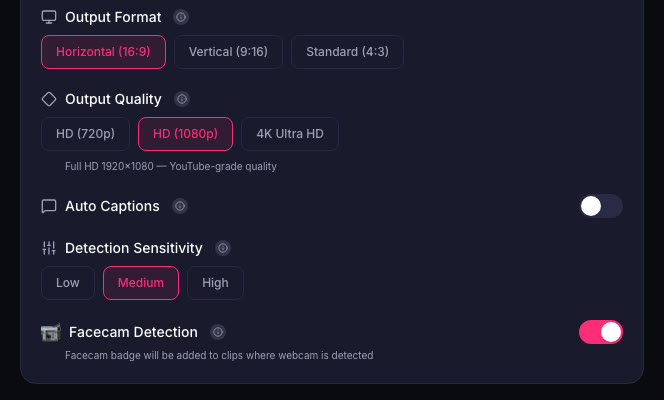
For step 3, ViceForge finds the moments in your VOD and cuts them into vertical clips with captions, with your facecam in frame.
Sources
- Twitch Help: Video on demand
- Twitch Developers: Clips API
Written with AI assistance, then fact-checked and edited by Predrag Mitrovic.
Turn your next stream into Shorts
Upload a VOD or gameplay recording and ViceForge finds the best moments, cuts vertical clips and adds captions.
Clip a video with ViceForgeMore from Guides
How to Avoid Copyright Claims When Turning VODs into Shorts
Music in the background, game soundtracks and the one-minute rule on YouTube. Where claims come from when you turn streams into Shorts, and how to keep your clips online.
Captions for Gaming Clips: Styles That Keep Viewers Watching
Many people scroll short-form feeds with sound off. Why captions matter for gaming clips, where to place them so they do not cover the action, and which styles fit which games.
How to Find the Best Moments in a Long Stream
A four-hour stream might hold five clips worth posting. Signals that point to them, a manual method that works, and how AI finds them by watching and listening.