How to Turn a YouTube Live Stream into Shorts
YouTube's own tools, their 60-second and claim limits, and how to turn a full live stream into many vertical Shorts, including clipping while you are still live.
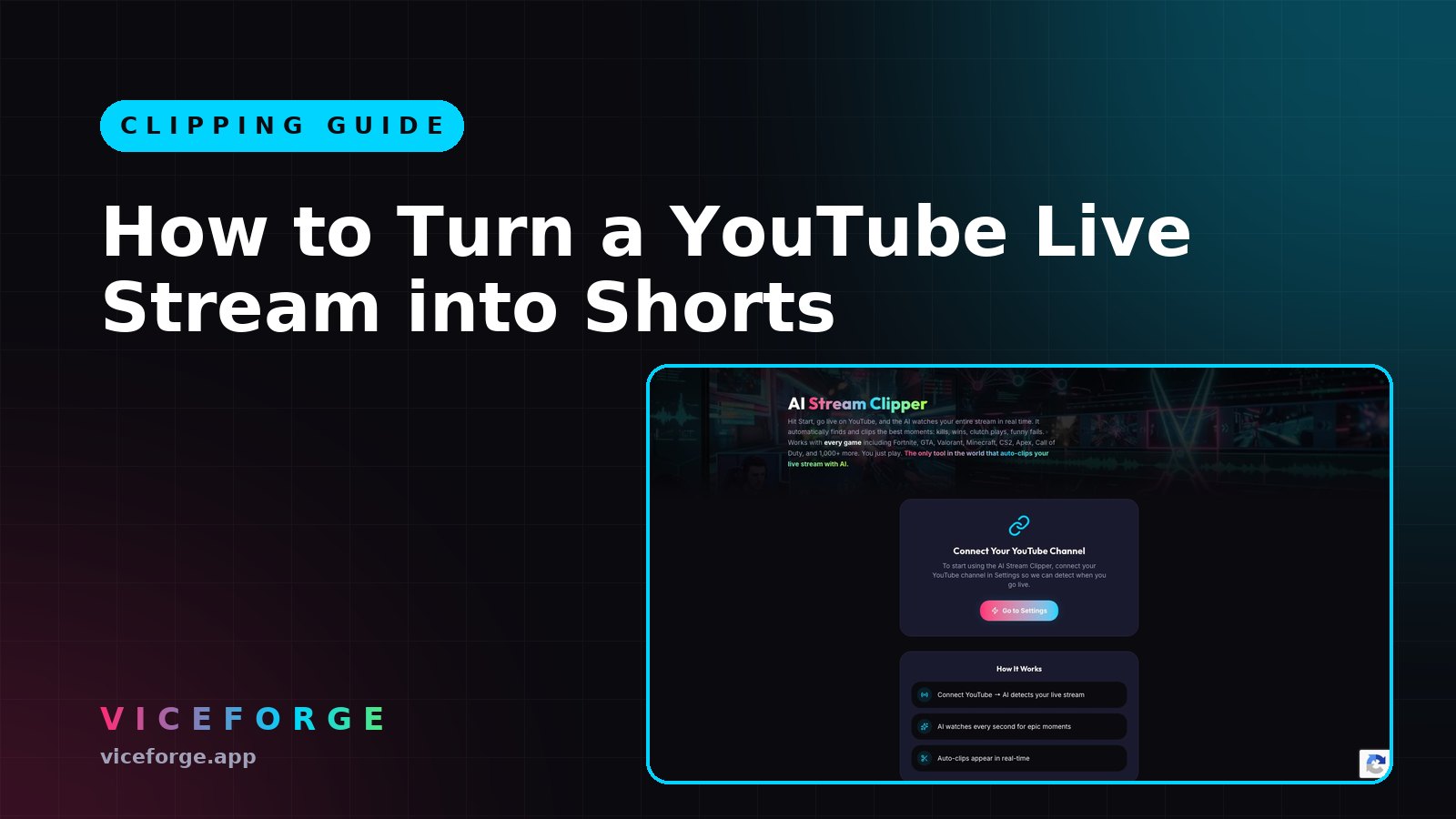
When a YouTube live stream ends, it stays on your channel as a video. That makes YouTube a good platform for repurposing: your stream is already there, and Shorts can send new viewers back to it. Here are the ways to do it.
Option 1: Edit into a Short (mobile)
- Open your stream in the YouTube app.
- Tap Remix > Edit into a Short.
- Pick a section of up to 60 seconds.
- Add text or effects, then post.
Limits: only your own public video, and only if it has no third-party claims.
Option 2: YouTube Studio (desktop)
- Open YouTube Studio > Content.
- Choose the stream.
- Clips and Shorts > Create clip or Short > Short.
In some countries YouTube also suggests sections with AI.
The limits of the built-in tools
Both tools are free and handy for one or two Shorts. They become slow when you want more:
- you still have to find each moment yourself,
- one Short at a time,
- the source video must be public and claim-free,
- your webcam and gameplay are not rearranged automatically for vertical.
Option 3: AI clipping from the whole stream
With ViceForge you can import a stream by YouTube URL (Creator Elite) or upload the file. Choose AI Gaming for gameplay or AI Creator for talk and IRL streams. The AI finds the moments and cuts them into vertical clips with captions, with your facecam kept in frame.
Option 4: Clip while you are still live
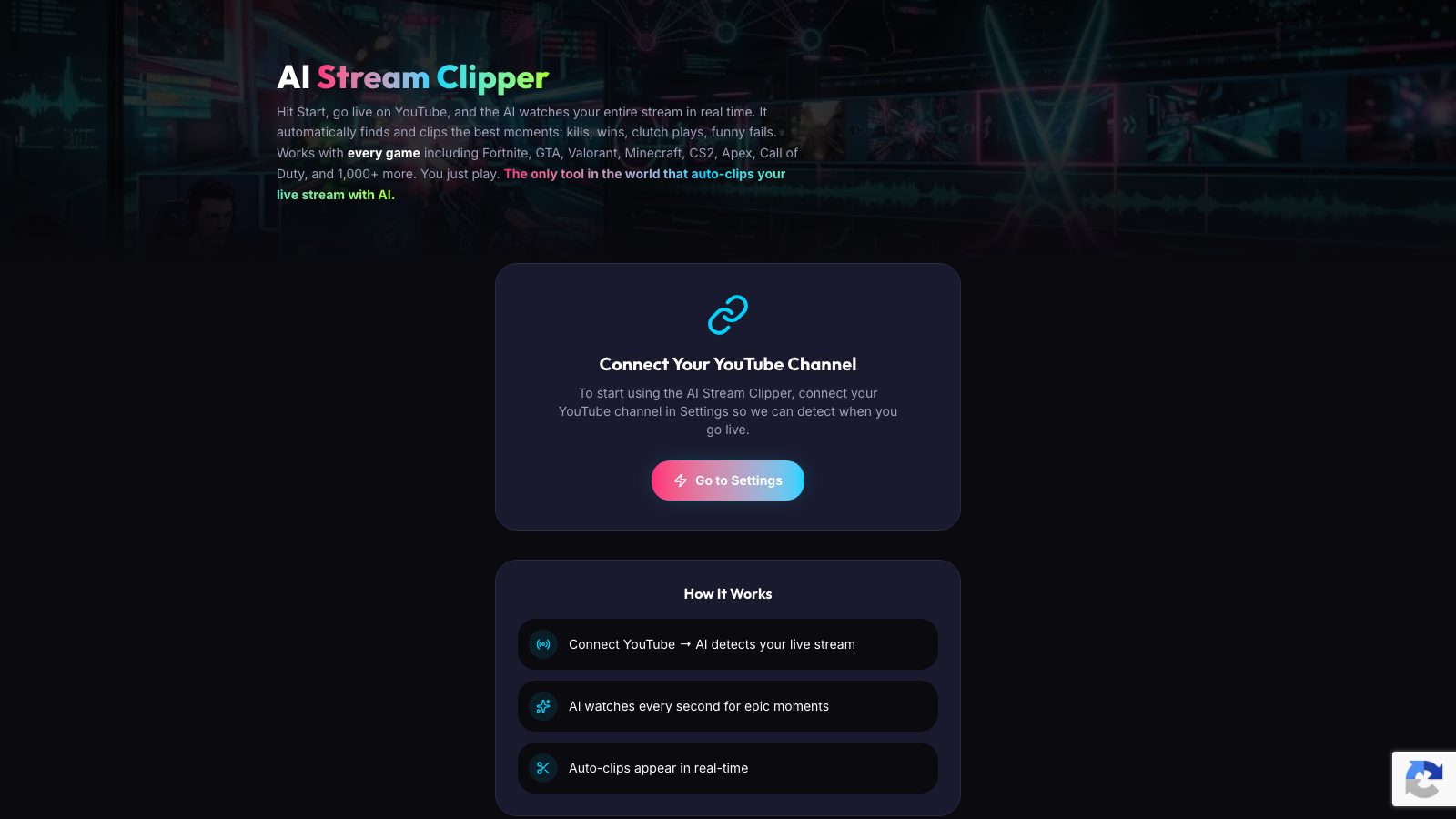
On Creator Elite, Stream Clipper connects to your YouTube channel and watches your live stream. It cuts clips during the stream, so they are ready when you go offline.
Before posting
- Shorts longer than 1 minute with any claim are blocked worldwide. If there is music, keep it at 60 seconds or less.
- Start in the middle of the action. No intros.
- Captions on. Many viewers scroll with sound off.
- Link back to the full stream in the description.
Which option to choose
| Goal | Option |
|---|---|
| One quick Short from your phone | Edit into a Short |
| A few Shorts at your desk | YouTube Studio |
| Many Shorts from one stream | AI clipping |
| Clips ready the moment you go offline | Stream Clipper |
Sources
- YouTube Help: Edit into a Short
- YouTube Help: Create clips and Shorts in YouTube Studio
- YouTube Help: Shorts longer than 1 minute and Content ID
Written with AI assistance, then fact-checked and edited by Predrag Mitrovic.
Turn your next stream into Shorts
Upload a VOD or gameplay recording and ViceForge finds the best moments, cuts vertical clips and adds captions.
Clip a video with ViceForgeMore from Guides
How to Avoid Copyright Claims When Turning VODs into Shorts
Music in the background, game soundtracks and the one-minute rule on YouTube. Where claims come from when you turn streams into Shorts, and how to keep your clips online.
Captions for Gaming Clips: Styles That Keep Viewers Watching
Many people scroll short-form feeds with sound off. Why captions matter for gaming clips, where to place them so they do not cover the action, and which styles fit which games.
How to Find the Best Moments in a Long Stream
A four-hour stream might hold five clips worth posting. Signals that point to them, a manual method that works, and how AI finds them by watching and listening.