How to Keep Your Facecam in Vertical Gaming Clips
A plain center crop cuts your webcam out of a 9:16 clip. Why it happens, the layouts streamers use, and how to keep your face in frame automatically.

You stream in 16:9 with your webcam in a corner. Then you crop the clip to 9:16 for Shorts or TikTok, and your face is gone. That happens all the time, and it hurts the clip, because your reaction is often what makes it worth watching.
Why the facecam disappears
A vertical 9:16 frame cut from a 16:9 video is only about a third of the original width. A center crop keeps the middle of the screen. Most streamers put their webcam in a corner, so a center crop cuts it out.
Three layouts that keep you in the clip
1. Split screen. Facecam on top, gameplay on the bottom. This is the most common layout for gaming Shorts. Your reactions and the action are both visible.
2. Picture in picture. Gameplay fills the frame, your facecam sits in a small box in a corner. Good when the gameplay needs most of the space.
3. Reframe around the facecam. The crop moves so it includes the webcam area instead of the center. It works when the camera is close enough to the action you want to show.
Doing it by hand
In a normal video editor:
- Put the clip on a 1080x1920 timeline.
- Duplicate the clip.
- Crop one copy to the webcam and place it at the top.
- Crop the other copy to the gameplay and place it below.
- Repeat for every clip.
It works, but it takes several minutes per clip. That adds up quickly if you post every day.
Doing it automatically
In ViceForge, turn on Facecam Detection. It scans the video for webcam overlays and finds the position automatically, in any corner and at any resolution. When you choose Vertical (9:16) output, the crop reframes to keep your facecam visible instead of cutting it off.
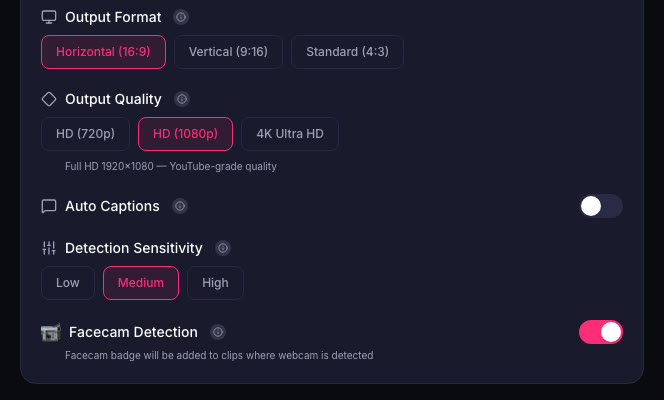
Facecam is also one of the signals the AI uses to find good moments: a big reaction on camera often marks a clip worth posting.
Tips for better facecam clips
- Light your face. A cheap light does more than a better camera.
- Do not hide the webcam behind alerts or overlays.
- Keep the same corner every stream, so the crop is predictable.
- React out loud. Captions turn your voice into text people see with sound off.
Sources
- YouTube Help: Shorts length and format
- ViceForge: Upload settings
Written with AI assistance, then fact-checked and edited by Predrag Mitrovic.
Turn your next stream into Shorts
Upload a VOD or gameplay recording and ViceForge finds the best moments, cuts vertical clips and adds captions.
Clip a video with ViceForgeMore from Guides

How to Avoid Copyright Claims When Turning VODs into Shorts
Music in the background, game soundtracks and the one-minute rule on YouTube. Where claims come from when you turn streams into Shorts, and how to keep your clips online.
Captions for Gaming Clips: Styles That Keep Viewers Watching
Many people scroll short-form feeds with sound off. Why captions matter for gaming clips, where to place them so they do not cover the action, and which styles fit which games.

How to Find the Best Moments in a Long Stream
A four-hour stream might hold five clips worth posting. Signals that point to them, a manual method that works, and how AI finds them by watching and listening.