How to Download Your Twitch VODs Before They Expire
Twitch deletes past broadcasts after 7, 14 or 60 days depending on your account. How to turn on VOD storage, download your streams, and what happens to muted audio.
Every stream you do is raw material for clips, compilations and Shorts. But Twitch does not keep it forever. If you do not download your VODs, the best moments of your stream disappear after a few days.
How long Twitch keeps your VODs
Since September 2022:
| Account | VOD stays |
|---|---|
| Most Partners, Prime and Turbo users | 60 days |
| Affiliates | 14 days |
| Everyone else | 7 days |
If you are not an Affiliate yet, you have one week.
Step 1: Turn on VOD storage
- Open Creator Dashboard > Settings > Stream.
- Find VOD Settings.
- Turn on Store past broadcasts.
This setting is only on the web, not in the mobile app. Check it now. If it is off, your streams are not being saved at all.
Step 2: Download the VOD
- Go to Creator Dashboard > Content > Video Producer.
- Find the broadcast.
- Click the three dots and choose Download.
Twitch prepares the file, which can take a while for long streams. Then save it to your computer.
What about muted audio?
Twitch scans VODs for copyrighted music. When it finds some, it mutes those parts of the VOD. When you download a muted VOD, the download is muted too. There is no unmuted copy to get back.
If music matters in your stream, the only real fix is to avoid copyrighted music while live. Twitch's own music library, Soundtrack by Twitch, was shut down in July 2023.
Keep a highlight on Twitch
If you want parts of a stream to stay on Twitch after the VOD expires, make a Highlight in Video Producer. Highlights and Uploads share a 100-hour limit per channel.
Organize your downloads
- One folder per month.
- File names with date and game, for example
2026-11-19_gta6_day1.mp4. - An external drive or cloud storage, since streams take a lot of space.
Turn the download into clips
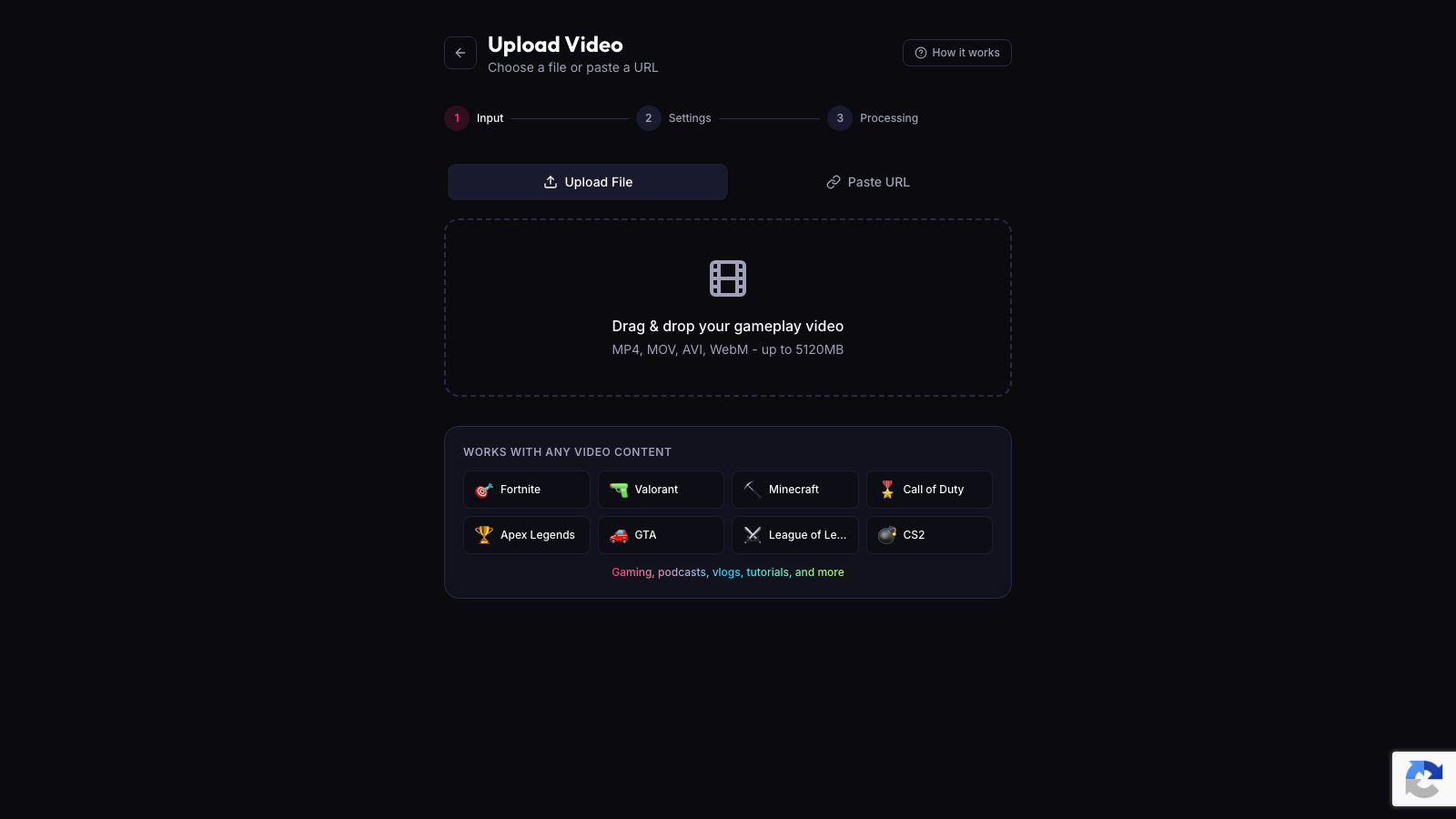
A downloaded VOD is only useful if you do something with it. Upload it to ViceForge, choose AI Gaming or AI Creator, and get vertical clips with captions. MP4, MOV, AVI and WebM are supported.
A simple habit: download and upload the VOD the same night you stream. Then the clips are ready in the morning, long before the 7-day clock runs out.
Sources
- Twitch Help: Video on demand
- Twitch Help: Copyrighted audio warnings
Written with AI assistance, then fact-checked and edited by Predrag Mitrovic.
Turn your next stream into Shorts
Upload a VOD or gameplay recording and ViceForge finds the best moments, cuts vertical clips and adds captions.
Clip a video with ViceForgeMore from Guides
How to Avoid Copyright Claims When Turning VODs into Shorts
Music in the background, game soundtracks and the one-minute rule on YouTube. Where claims come from when you turn streams into Shorts, and how to keep your clips online.
Captions for Gaming Clips: Styles That Keep Viewers Watching
Many people scroll short-form feeds with sound off. Why captions matter for gaming clips, where to place them so they do not cover the action, and which styles fit which games.
How to Find the Best Moments in a Long Stream
A four-hour stream might hold five clips worth posting. Signals that point to them, a manual method that works, and how AI finds them by watching and listening.