AI Reads Speech: Pick Better Moments from Talk and Podcast Clips
ViceForge's AI Reads Speech listens to what you say in any language and picks clips based on funny lines, quotes and reactions instead of just visuals.
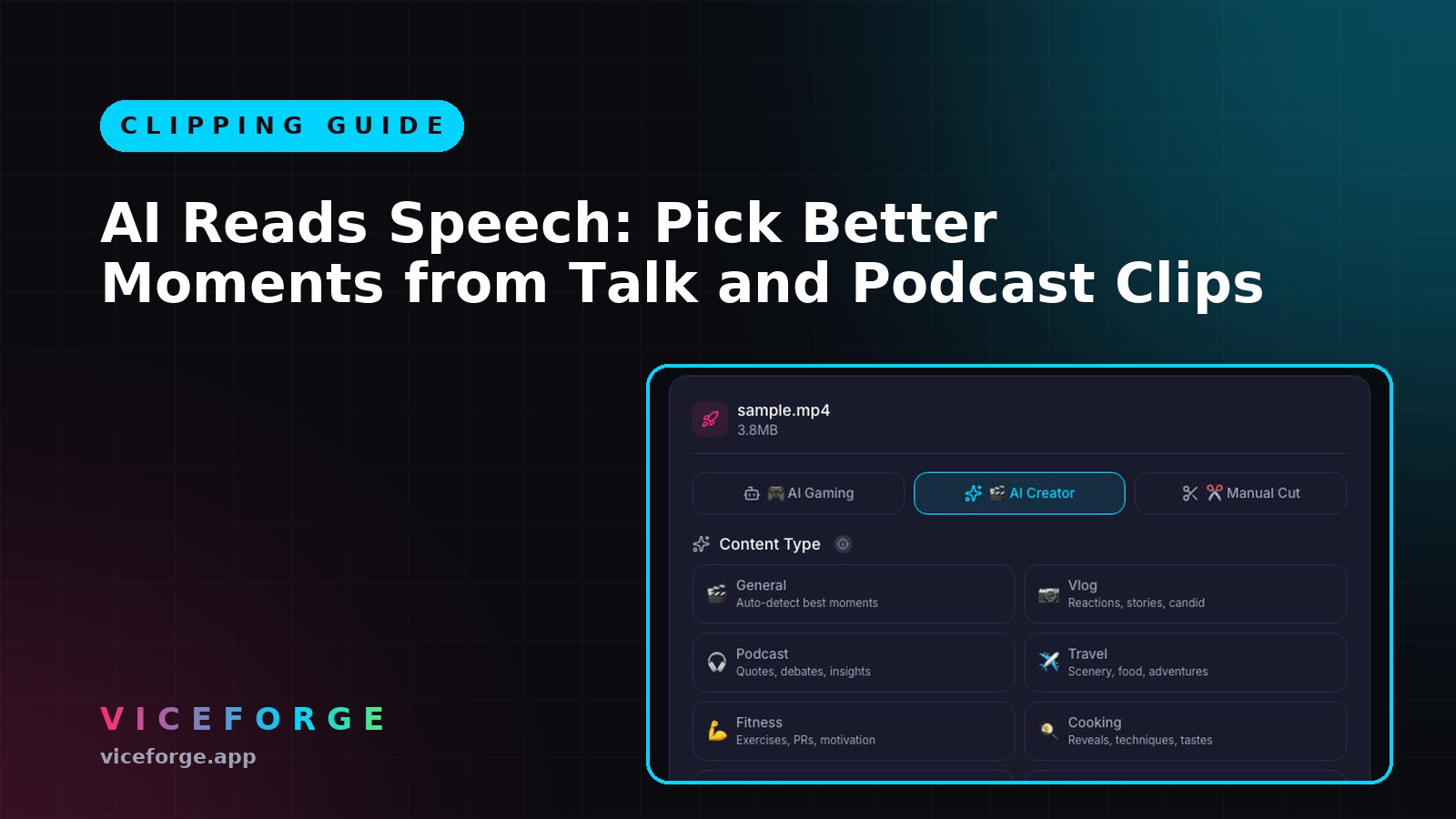
A funny line, a strong opinion, a reaction to something wild, those are the moments that make talk and podcast clips work. But if the AI only looks at the video, it misses what was actually said.
ViceForge's AI Reads Speech (new in October 2026) listens to the audio, understands the words in any language, and picks moments based on funny lines, quotes, strong statements, reactions, hype and swearing. The clip titles then describe what was said, not just what happened on screen.
What AI Reads Speech does
When you turn it on, the AI:
- Listens to every word in the video, in any language (including Arabic).
- Finds moments with funny lines, quotes, strong statements, reactions, hype and swearing.
- Writes clip titles that describe what was said.
It works in both AI Gaming and AI Creator modes. Processing speed stays the same.
Which videos benefit most
Consider AI Reads Speech for videos where dialogue and commentary drive the content:
- Podcast episodes.
- Talk shows and commentary videos.
- IRL streams with conversations.
- Gaming streams with funny commentary or reactions.
How to turn it on
- Go to ViceForge upload.
- Choose AI Gaming or AI Creator.
- Scroll to the bottom of the settings.
- Turn on AI Reads Speech.
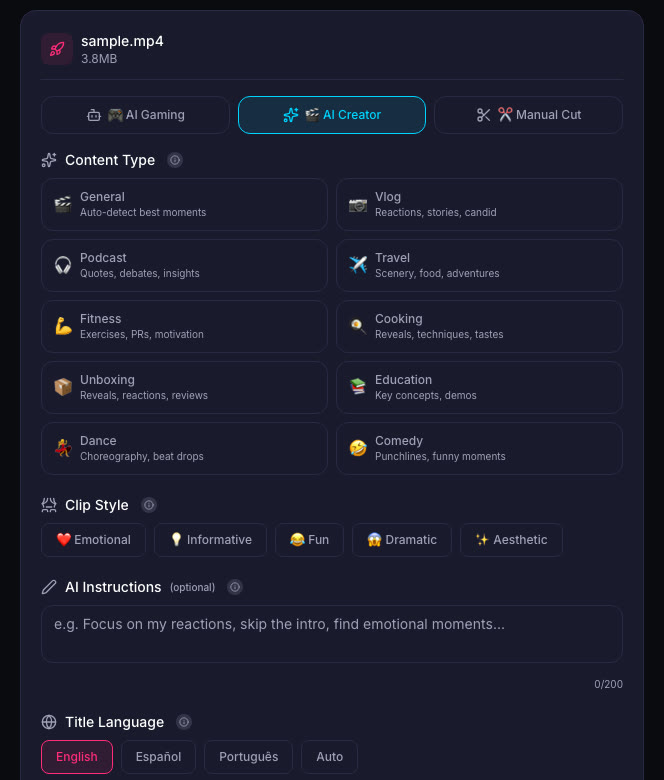
You turn it on per video.
Plans and limits
AI Reads Speech is available on:
- Creator Pro: no separate limit, it uses your plan's 300 minutes of video per month.
- Creator Elite: no separate limit, it uses your plan's 600 minutes of video per month.
- Lifetime: up to 150 minutes of video per month.
Free and Gamer Pro plans see the switch locked.
How it works with AI Gaming and AI Creator
AI Gaming mode is for gameplay videos. Pick the game, and the AI finds action, kills, chases, crashes and big reactions. With AI Reads Speech on, it also listens for funny lines and strong reactions to those events.
AI Creator mode is for talk, IRL and podcast-style videos. The AI looks for engagement, reactions and moments that hold attention. With AI Reads Speech on, it picks moments based on what was said, not just body language or camera movement.
Captions are added automatically, and your facecam stays in frame when you export to vertical (9:16).
Clip titles that describe what was said
Without AI Reads Speech, a clip title might say "Strong reaction" or "Funny moment". With it on, the title describes the actual line: "I can't believe he said that" or "Best take on the new update".
This makes it easier to pick the clips you want to post and helps viewers know what they are about to watch.
What stays the same
- Upload formats: MP4, MOV, AVI, WebM.
- Output formats: Horizontal (16:9), Vertical (9:16), Standard (4:3).
- Captions are added to every clip.
- The original audio (game sound, voice, music) stays in the clip. ViceForge does not add, remove or mute music.
- Maximum clip length: 60 seconds on Gamer Pro, 90 seconds on Creator Pro, 2 minutes on Creator Elite.
Quick checklist
- Upload a talk, podcast or commentary video.
- Choose AI Gaming or AI Creator.
- Turn on AI Reads Speech at the bottom of the settings.
- Export to vertical (9:16) if you want to post to Shorts, Reels or TikTok.
- Review the clip titles to see what was said in each moment.
Use it for podcast episodes and commentary
A 90-minute podcast has dozens of moments worth clipping, but finding them by scrubbing through the video takes time. AI Reads Speech listens to the whole thing and picks the lines that work as standalone clips.
The same applies to commentary videos, IRL streams with conversations, and gaming streams where the funny part is what you said, not what happened in the game.
Sources
Written with AI assistance, then fact-checked and edited by Predrag Mitrovic.
Turn your next stream into Shorts
Upload a VOD or gameplay recording and ViceForge finds the best moments, cuts vertical clips and adds captions.
Clip a video with ViceForgeMore from Guides
How to Avoid Copyright Claims When Turning VODs into Shorts
Music in the background, game soundtracks and the one-minute rule on YouTube. Where claims come from when you turn streams into Shorts, and how to keep your clips online.
Captions for Gaming Clips: Styles That Keep Viewers Watching
Many people scroll short-form feeds with sound off. Why captions matter for gaming clips, where to place them so they do not cover the action, and which styles fit which games.
How to Find the Best Moments in a Long Stream
A four-hour stream might hold five clips worth posting. Signals that point to them, a manual method that works, and how AI finds them by watching and listening.