AI Hook: The 'A Few Moments Later' Card Explained
The optional card sits between your hook and main moment. Change the text, narrator, length and background per clip.
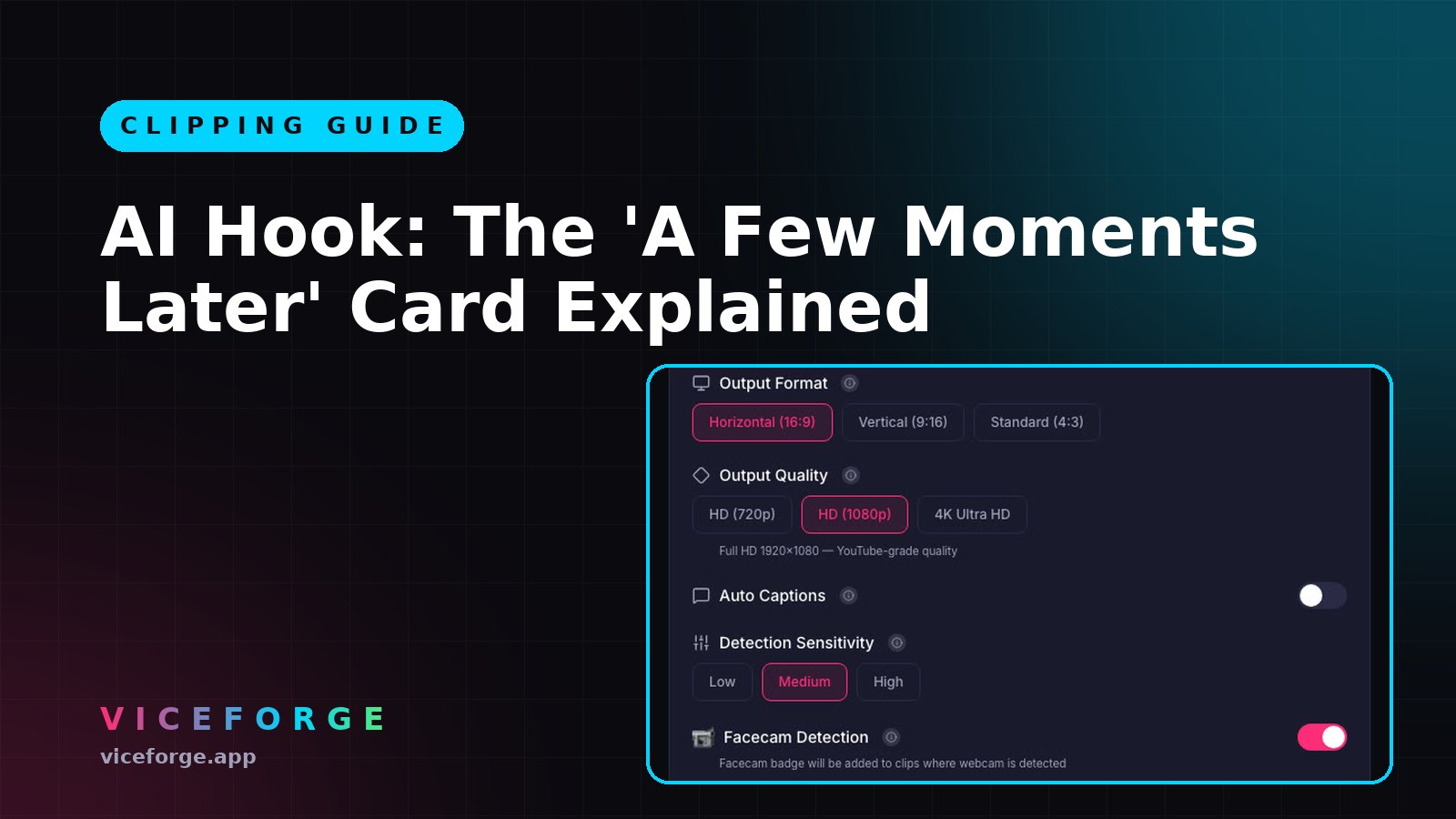
AI Hook clips open with your peak moment, then flow into the full build-up. The optional "A few moments later" card sits between those two parts, marking the jump in time. This guide explains how the card works and how to control it.
What the card does
When you turn on AI Hook in the upload settings, the AI cuts each clip into two parts: the hook (up to 5 seconds of the peak) and the main moment (the full build-up and payoff). The "A few moments later" card appears between them.
By default, the card is a 2-second black screen with the text "A few moments later..." read by a narrator. You can change the text, turn the narrator off, adjust the length, or replace the black background with a blurred still of the hook's last frame.
The card is optional. You turn it on in the hook options at upload or per clip in the editor.
Where to find the setting
- Upload a video to ViceForge.
- Choose AI Gaming or AI Creator.
- Turn on AI Hook.
- Open the hook options.
- Turn on "A few moments later" card.
Card options
| Setting | Options |
|---|---|
| Text | Up to 40 characters (default: "A few moments later...") |
| Narrator | On or off |
| Length | 1 to 4 seconds |
| Background | Black or blurred still of the hook's last frame |
You can edit these settings per clip in the editor after the AI finishes.
Custom text examples
- "Two hours later..."
- "After the crash..."
- "Back to the start..."
- "Meanwhile..."
The narrator reads whatever you write. If you turn the narrator off, the text stays on screen in silence.
Quick checklist
- Turn on AI Hook first. The card only appears when AI Hook is on.
- Keep text under 40 characters. The limit is hard.
- Test the narrator. If you do not like the voiceover, turn it off.
- Pick a length that fits the jump. A 1-second card is fast. A 4-second card gives more breathing room.
- Try both backgrounds. Black is plain. Blurred still keeps a visual link to the hook.
Edit the card after the AI runs
In the clip editor, each hook clip shows the hook and the main part with separate start and end times. The card sits between them. You can change the card text, toggle the narrator, adjust the length, and switch the background without re-generating the clip.
Turn clips into a series
Upload your stream or recording to ViceForge, turn on AI Hook and the card, and get multiple clips that all open with their peak moment. The card gives each clip a consistent structure, which can help when you post them as a series.
Sources
Written with AI assistance, then fact-checked and edited by Predrag Mitrovic.
Turn your next stream into Shorts
Upload a VOD or gameplay recording and ViceForge finds the best moments, cuts vertical clips and adds captions.
Clip a video with ViceForgeMore from Guides
AI Hook: Adjust the Peak and Add a Card Between Moments
Every AI Hook clip has two parts you can adjust separately. Trim the peak, move the build-up, or add a custom card between them.
AI Reads Speech: Turn Talk Streams into Clips
Turn on AI Reads Speech and the AI listens to what is said, picks clips from funny lines, quotes and reactions, and writes titles that describe the moment.
AI Hook: Open Strong, Keep Viewers to the End
AI Hook opens each clip with the peak moment, then loops back to show the build-up. Works on uploads and YouTube links.