AI Hook: Adjust the Peak and Add a Card Between Moments
Every AI Hook clip has two parts you can adjust separately. Trim the peak, move the build-up, or add a custom card between them.
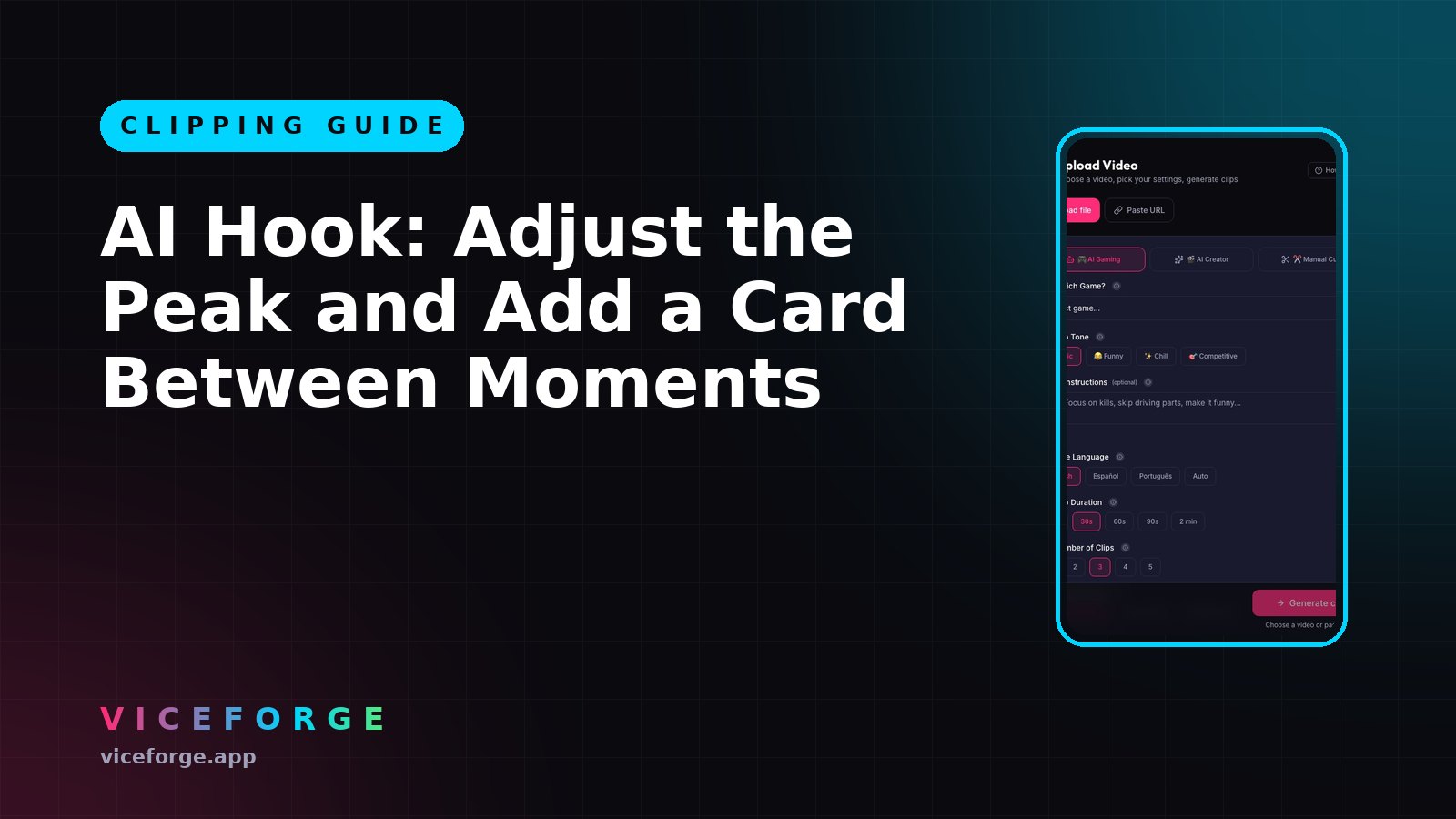
AI Hook clips open with your best moment, then play the full build-up. But sometimes the peak needs a trim, or the jump between the hook and the main part feels too sudden. Re-editing a clip with a hook keeps the original resolution and follows your facecam in vertical format.
What you can adjust
Every AI Hook clip has two parts in the editor: the hook (the cold open) and the main clip. Each part has its own start and end time, adjustable in 0.1 second and 1 second steps. You can:
- Trim the hook shorter or extend it, up to 5 seconds total.
- Move the main clip's start point to skip a slow build-up or include more context.
- Add an "A few moments later" card between the hook and the main part.
- Write your own card text, up to 40 characters.
- Choose how long the card stays on screen, from 1 to 4 seconds.
- Turn the narrator voiceover on or off for the card.
- Pick a black background or a blurred still of the hook's last frame.
When to adjust the peak
The AI cuts the hook at a natural break: the end of an explosion, a full reaction, or a complete spoken line. But you might want to tighten it:
- The hook includes a second of silence before the action.
- The streamer's reaction goes on too long.
- The line is funny but the last word is not needed.
Trim the hook's end time by 0.5 or 1 second. Preview the clip. If the hook now cuts mid-word or mid-crash, move the end back.
When to adjust the main part
The main clip starts from the build-up to the peak. If the build-up is slow, move the start time forward a few seconds. If the clip feels like it is missing context, move it back.
Example: a talk clip where the hook is the punchline. The main part starts 10 seconds before the punchline, but the first 5 seconds are just the streamer setting up the topic. Move the start 5 seconds forward. The clip now goes straight into the story, then the hook, then the rest of the punchline.
Add a card between the hook and the main part
The card is optional. Turn it on in the upload settings under AI Hook options, or per clip in the editor. By default it says "A few moments later..." and stays for 2 seconds.
When to use it:
- The hook and the main part are from different parts of the stream, and the jump is confusing without a marker.
- You want to build anticipation before the full moment.
- The clip is a story or a reaction that needs a pause between the peak and the setup.
When to skip it:
- The hook flows directly into the main part with no time gap.
- The clip is fast-paced action and a card slows it down.
Write your own card text
Click the card text field in the editor. Write up to 40 characters. Examples:
- "Two hours later..."
- "Meanwhile..."
- "Wait for it..."
- "And then this happened"
The narrator reads the text out loud by default. Turn the narrator off if you want silence, or if your own voice is about to explain what happened.
Pick the card length
1 second: fast, for clips where the hook and main part are close in time.
2 seconds: default, works for most clips.
3 to 4 seconds: when the card text is long or you want a dramatic pause.
Choose the background
Black: clean, works with any clip.
Blurred still: the last frame of the hook, blurred. Keeps the visual flow, good for talk clips and reactions where the streamer's face is visible.
Quick checklist
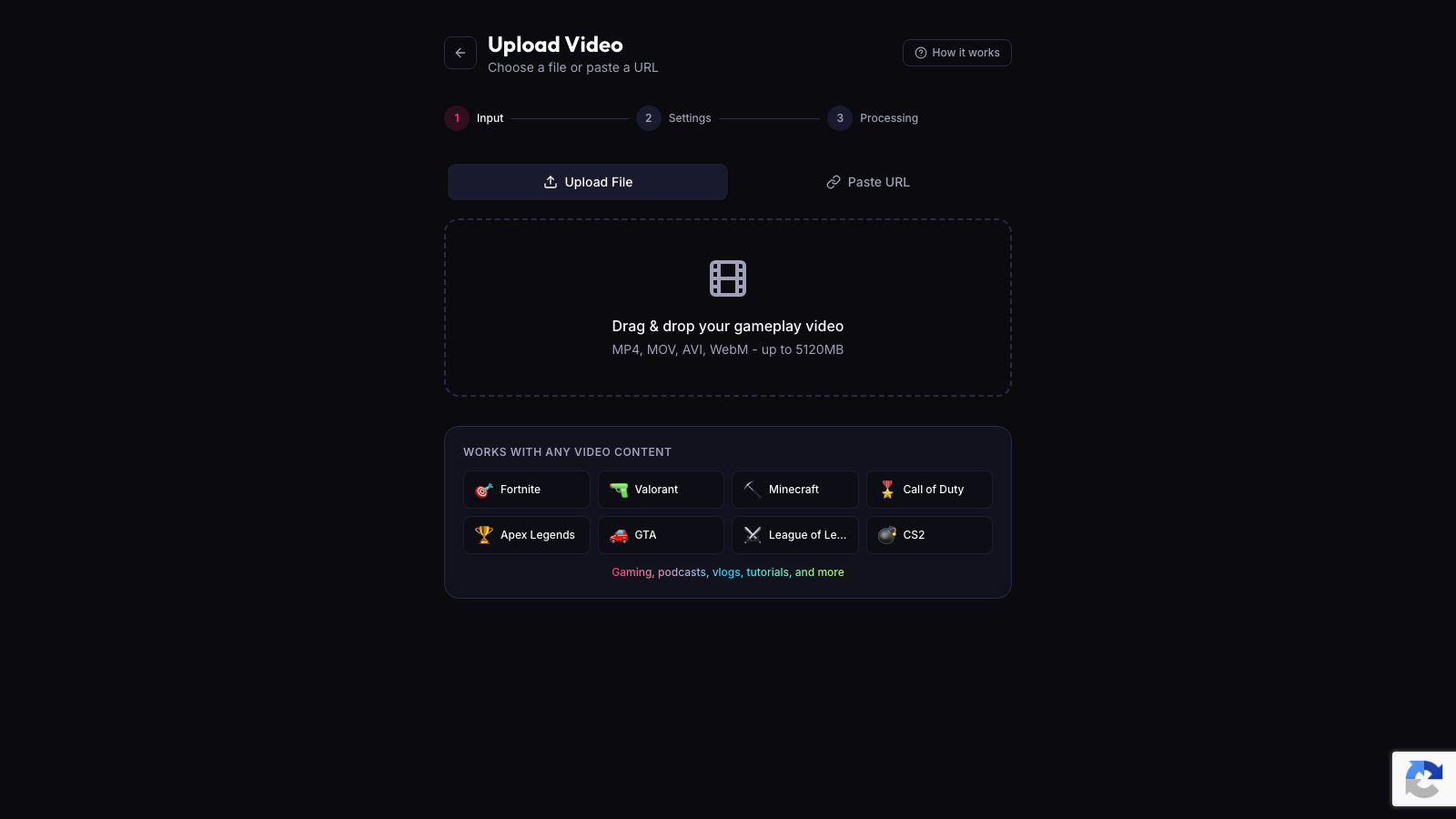
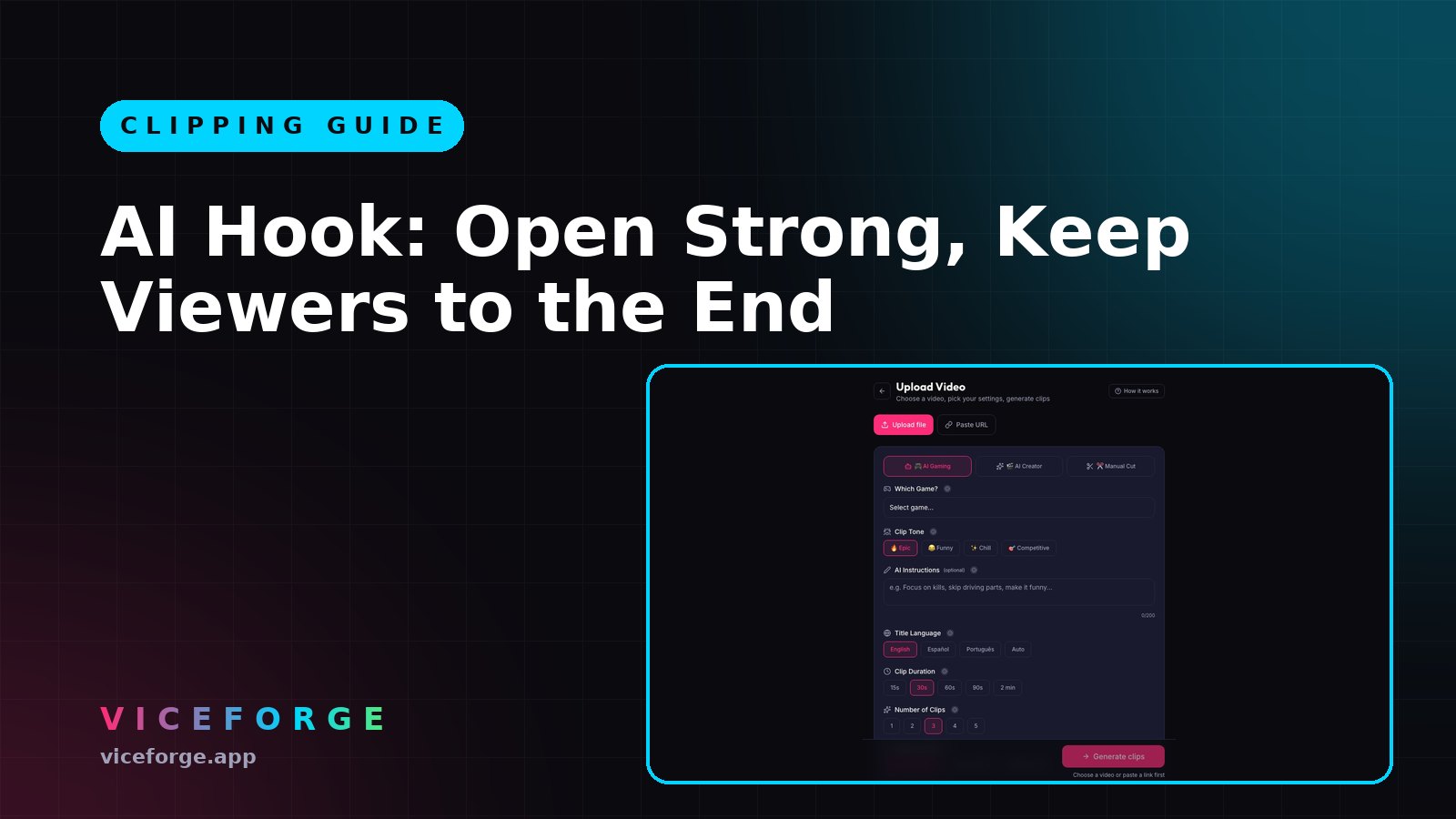
- Upload your video to ViceForge and turn on AI Hook in the settings.
- Generate clips.
- Open a clip in the editor.
- Adjust the hook's end time if the peak is too long.
- Adjust the main clip's start time if the build-up is slow.
- Turn on the card if the hook and main part need a transition.
- Write your own card text if the default does not fit.
- Pick the card length: 1 to 4 seconds.
- Choose black or blurred background.
- Turn the narrator off if you want silence.
- Preview the clip and export.
Who can use AI Hook
It works with uploaded videos and YouTube URL imports, in AI Gaming and AI Creator modes. If the AI finds no clear peak, the clip stays a normal clip with no hook.
Sources
Written with AI assistance, then fact-checked and edited by Predrag Mitrovic.
Turn your next stream into Shorts
Upload a VOD or gameplay recording and ViceForge finds the best moments, cuts vertical clips and adds captions.
Clip a video with ViceForgeMore from Guides
AI Hook: The 'A Few Moments Later' Card Explained
The optional card sits between your hook and main moment. Change the text, narrator, length and background per clip.
AI Reads Speech: Turn Talk Streams into Clips
Turn on AI Reads Speech and the AI listens to what is said, picks clips from funny lines, quotes and reactions, and writes titles that describe the moment.
AI Hook: Open Strong, Keep Viewers to the End
AI Hook opens each clip with the peak moment, then loops back to show the build-up. Works on uploads and YouTube links.