Adobe Premiere Mobile Adds Licensed Music: What Clip Creators Need
Adobe's mobile video editor, Premiere, now includes licensed music from Universal Music Group and Warner Music Group. Clip creators can add up to 60 seconds of popular songs directly in the app...
Adobe's mobile video editor, Premiere, now includes licensed music from Universal Music Group and Warner Music Group. Clip creators can add up to 60 seconds of popular songs directly in the app, browse by genre and duration, and export to social platforms without copyright claims on the licensed tracks.
What Adobe announced
Today, Adobe announced a partnership with Universal and Warner to bring a library of licensed music clips into the Premiere mobile app. The feature is coming soon, with no specific release date yet.
You will be able to:
- Add up to 60 seconds of a licensed track to your video.
- Browse, search and preview trending music by artist or track.
- Filter by genre and duration, bookmark favorites, and explore label-featured collections.
- Use customizable templates that already pair music with edits.
- Export finished videos and post to licensed social platforms.
Adobe has not announced which specific artists or songs are included, only that the library will feature "popular songs" from "leading artists" and help creators "jump on the latest trend."
How this compares to what you already have
Premiere Pro desktop and Premiere mobile already include a built-in library of royalty-free music. The new feature adds recognizable, licensed tracks without the need to import them manually.
This update aims to help Adobe's mobile editor compete with popular rivals like CapCut.
Adobe has not confirmed whether the licensed music library will come to Premiere Pro desktop.
When to use licensed music instead of your source audio
Consider using licensed music when you are making a montage or highlight reel without commentary, when the original audio is too quiet or messy, when you want a trending song to match a meme format, or when you are editing IRL, vlog or lifestyle content where music carries the video.
Consider keeping the original audio when your clip depends on what you said, your reaction or in-game sound, when the moment is funny because of the audio, or when you are clipping a stream or gameplay session where the original audio is the point.
For gaming clips, consider whether the game sound, your voice and your reaction are what make the clip work before adding a song over it.
What this means for your workflow
If you edit on mobile and post to TikTok, Instagram or YouTube Shorts, the licensed music library saves time. You do not need to search for a song, download it, import it and hope it does not get claimed.
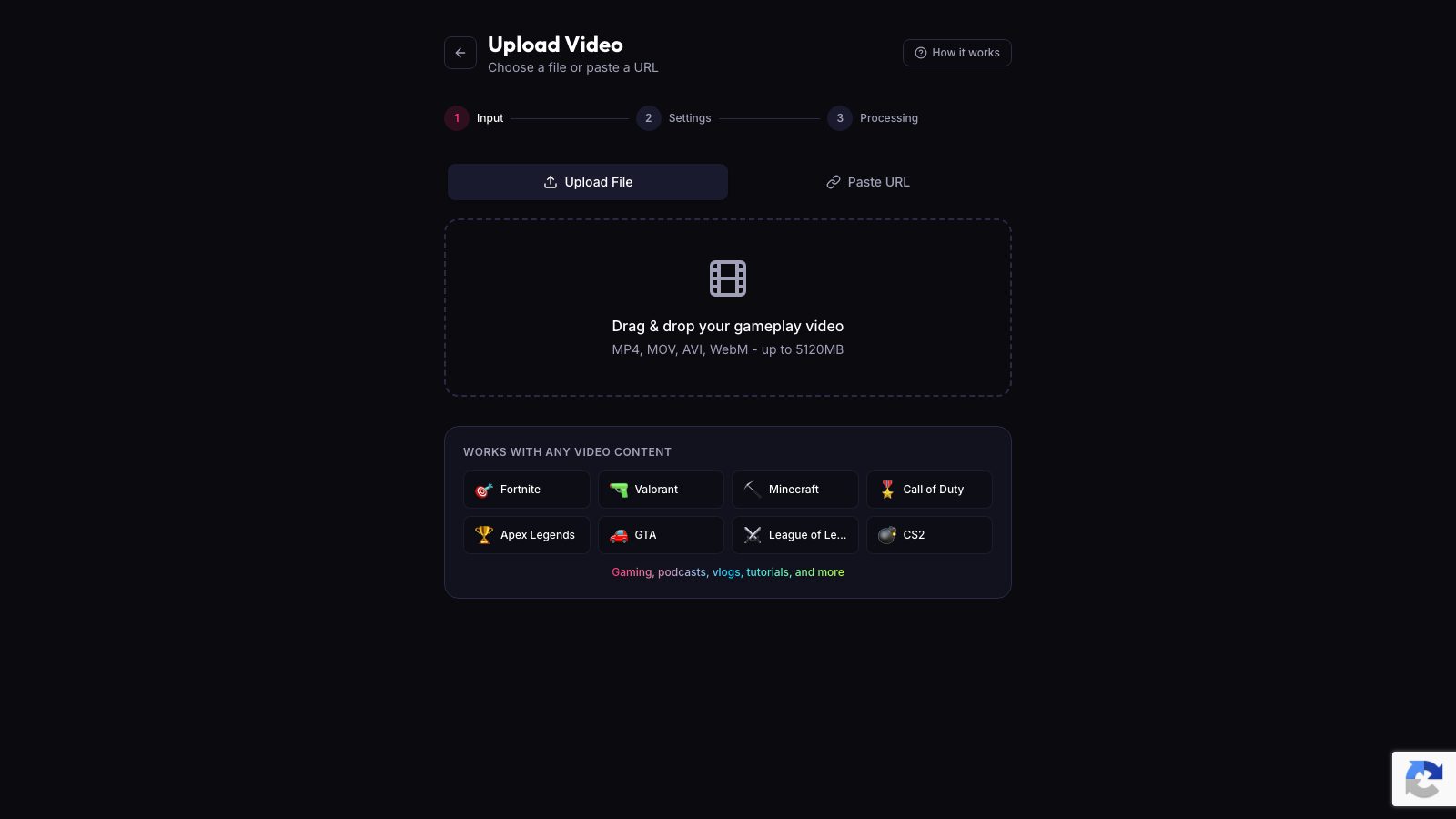
But if you clip streams or gameplay, the original audio is still your best option. Upload the VOD or recording to ViceForge, choose AI Gaming or AI Creator, and the clips keep your voice, the game sound and any reactions. The captions are added automatically, and the facecam stays in frame when you pick Vertical (9:16) output.
A licensed music library does not replace good source audio. It gives you another option when the original audio is not enough.
What about copyright claims on your existing clips
If your stream or recording already has copyrighted music in it, that music stays in the clip and can still be claimed on YouTube or muted on Twitch.
ViceForge keeps the original audio of your source video, including any music that was already there. If you want to avoid claims, mute the radio in GTA 6, turn off in-game music, or use a royalty-free playlist while you stream. For more on this, see GTA 6 Radio Music and Copyright Claims.
Quick checklist
- Wait for Adobe to release the licensed music feature in Premiere mobile.
- Use licensed music for montages, vlogs and IRL content where the original audio is not the focus.
- Keep the original audio for gaming clips, reactions and commentary.
- If you clip streams, upload the VOD to ViceForge and let the AI pick the moments with your voice and game sound intact.
- Mute copyrighted music in your streams if you want to avoid claims later.
Sources
Written with AI assistance, then fact-checked and edited by Predrag Mitrovic.
Turn your next stream into Shorts
Upload a VOD or gameplay recording and ViceForge finds the best moments, cuts vertical clips and adds captions.
Clip a video with ViceForgeMore from Guides
Facecam in Vertical Clips: Keep Your Overlay Visible
Automatic facecam detection reframes vertical clips to keep your overlay visible. Here is how it works and when to check your output.
Dead by Daylight Removes Streamer's Free DLC After Backlash
Behaviour removed TheBurntPeanut's gifted DLC on November 3, 2026, after skipping its usual checks. Here is what creators should know about partnerships and unfair gifting.
Instagram's 90-Minute Videos: What Clip Creators Should Know
Instagram is testing 90-minute videos with Features, starting October 26, 2026. You can link Reels to full streams, but short clips still get better reach.