Facecam in Vertical Clips: Keep Your Overlay Visible
Automatic facecam detection reframes vertical clips to keep your overlay visible. Here is how it works and when to check your output.
Your facecam is part of your brand. When you turn a horizontal stream into vertical clips for TikTok, YouTube Shorts or Instagram Reels, consider how the crop will frame your face. Viewers want to see the reaction, the personality, the reason they follow you.
Automatic facecam detection finds your overlay and reframes the crop to keep it visible. Here is how it works, when to check your output, and what to do when the facecam moves mid-stream.
How facecam detection works
When you upload a video to ViceForge and choose Vertical (9:16) output, the AI scans the video for your webcam overlay. It finds the position, tracks it through the clip, and adjusts the crop to keep your face in frame.
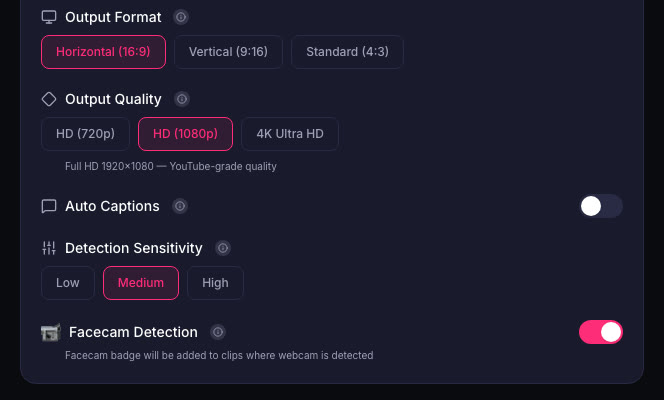
The detection runs automatically. You do not set the facecam position yourself.
When to check your clips before posting
Some streams need a second look:
- Facecam moves during the stream. Check a clip from before and after the move to confirm both parts stayed in frame.
- Multiple overlays. Chat boxes, alerts, donation tickers. Preview the clip to see what made it in.
- Small or transparent facecam. Check the output to confirm your overlay appears clearly.
- No facecam at all. Review how the crop frames your content.
Every clip card shows a clip score from 0 to 100. Clips are sorted best first, so you can review the top clips first. Click the thumbnail to watch the full clip before you download.
Vertical output for every clip
When you pick Vertical (9:16) on the upload page, every clip from that video comes out vertical, including parts with no speech for captions. The format applies to all three modes: AI Gaming, AI Creator and Manual.
The format choice stays the same across the AI, Creator and Manual tabs. If you switch modes while the video uploads, the output format does not reset.
What about captions?
Captions are added to every clip automatically. Free accounts get 2 caption styles. Paid plans (Gamer Pro, Creator Pro, Creator Elite) get 5 styles: Classic, Bold, Neon, Minimal, Animated.
Upload formats and output resolution
ViceForge accepts MP4, MOV, AVI and WebM. Maximum video length depends on your plan:
| Plan | Max video length | Monthly video minutes |
|---|---|---|
| Free | 30 minutes | 30 |
| Gamer Pro | 1 hour | 60 |
| Creator Pro | 1 hour | 300 |
| Creator Elite | 2 hours | 600 |
A video cannot be longer than the plan's remaining monthly minutes. The upload page shows your plan and stops a too-long video before it uploads.
Output resolution varies by plan. Check your plan details for specifics.
Quick checklist
- Upload your VOD to ViceForge.
- Choose Vertical (9:16) output.
- Pick AI Gaming or AI Creator mode.
- Click Generate clips when the upload finishes.
- Preview clips before posting to confirm framing meets your needs.
Sources
- ViceForge, Pricing and plans
Written with AI assistance, then fact-checked and edited by Predrag Mitrovic.
Turn your next stream into Shorts
Upload a VOD or gameplay recording and ViceForge finds the best moments, cuts vertical clips and adds captions.
Clip a video with ViceForgeMore from Guides
Dead by Daylight Removes Streamer's Free DLC After Backlash
Behaviour removed TheBurntPeanut's gifted DLC on November 3, 2026, after skipping its usual checks. Here is what creators should know about partnerships and unfair gifting.
Instagram's 90-Minute Videos: What Clip Creators Should Know
Instagram is testing 90-minute videos with Features, starting October 26, 2026. You can link Reels to full streams, but short clips still get better reach.
YouTube Report: 72% of Creators Use AI Video, Here's What It Means
YouTube's new report shows 72% of surveyed video posters use AI on videos or images. Here's how AI fits into your clip workflow.