PS5 Auto-Upload for GTA 6 Clips: What Works, What Doesn't
PS5 auto-upload only works for videos under 3 minutes at 1080p. Here's what uploads automatically, what needs USB, and how to get clips on your phone fast.
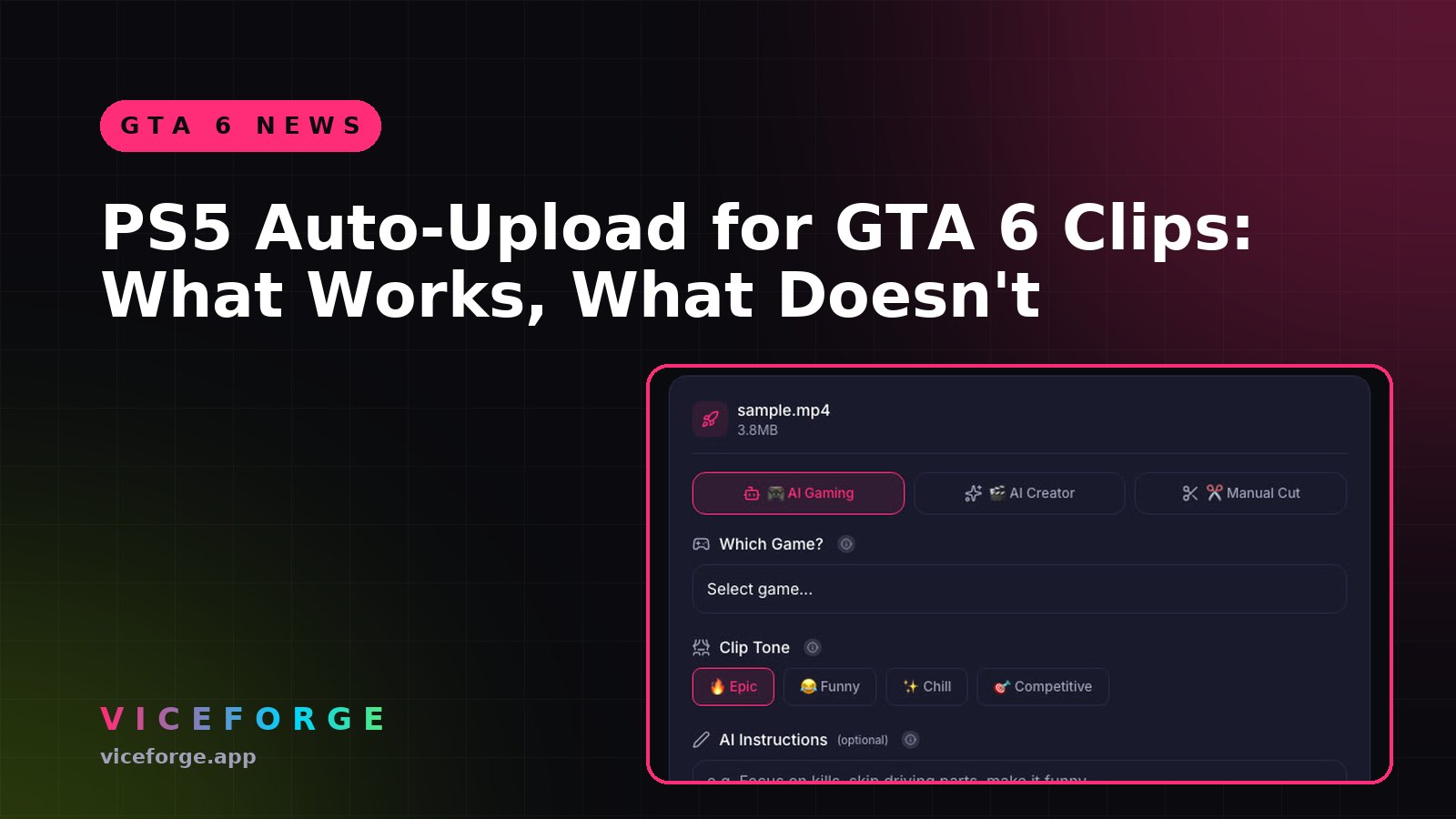
PS5's auto-upload feature sends your GTA 6 clips to the PlayStation App instantly, but it only works for videos under 3 minutes at 1080p or lower. For other clips, consider USB or a capture card. Here is what auto-uploads, what does not, and when to use each method.
What auto-uploads to the PS App
PlayStation App auto-upload works for:
- Videos under 3 minutes at 1080p or lower
- Screenshots taken from the Create Menu or Create button shortcuts
4K videos do not auto-upload. Trophy moments and Activity Challenge auto-captures do not upload either. Clips are stored for 14 days after creation, then deleted from the cloud.
How to enable auto-upload
- Link your PS5 console to PlayStation App.
- Leave your PS5 in rest mode with Stay Connected to the Internet enabled.
- Open PlayStation App, select Library, go to Captures and select Enable.
- On your PS5, go to Settings > Captures and Broadcasts > Captures and confirm the setting.
Once enabled, supported clips upload automatically. You can download them to your phone, share them in a party, or post them to social media from the app.
No PlayStation Plus subscription is needed.
When auto-upload is not enough
Auto-upload has three hard limits:
- 3 minutes maximum. The PS5 can record up to 1 hour, but longer clips require alternative transfer methods.
- 1080p only.
- 14 days storage. After 14 days, the clip is deleted from the cloud. If you have not downloaded it by then, it will no longer be available.
For longer clips, 4K recordings, or clips you want to keep past 14 days, use USB or a capture card.
How to copy clips to USB
To transfer clips that do not auto-upload, use a USB drive. Open Media Gallery on your PS5, select the clip you want to transfer, and use the options menu to copy it to your USB drive.
How to manually upload a clip to PS App
If a clip did not auto-upload, you can send it manually:
- Go to Media Gallery on your PS5.
- Highlight the clip, press the options button and select Upload to PlayStation App.
Manual upload follows the same rules: under 3 minutes, 1080p or lower.
Quick checklist for GTA 6 clips
- For instant sharing: Keep clips under 3 minutes at 1080p, enable auto-upload, leave PS5 in rest mode.
- For 4K or longer clips: Copy to USB or use a capture card.
- For clips you want to keep: Download from PS App within 14 days or copy to USB.
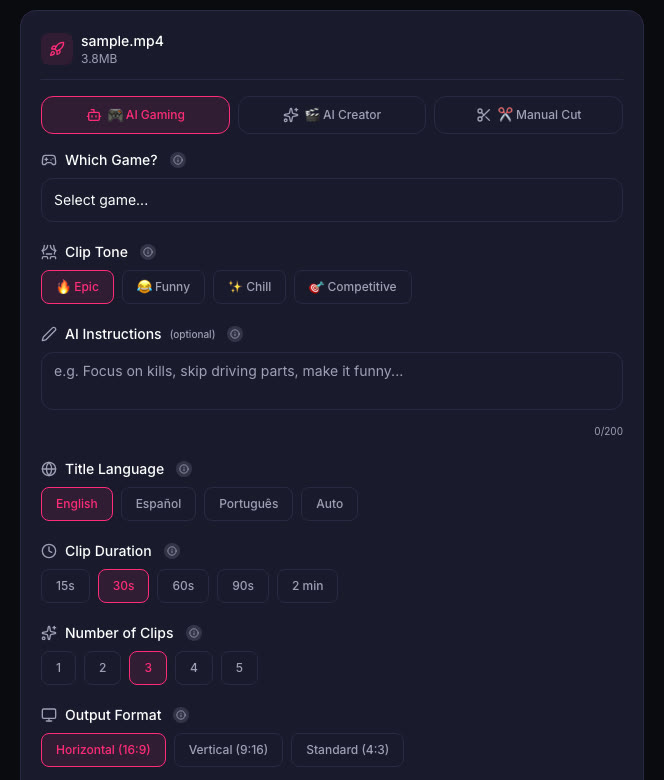
- For vertical Shorts: Upload your clip to ViceForge, pick GTA from the game list, and set output to Vertical (9:16) for automatic action detection and facecam framing.
What to record in 4K and what to record in 1080p
If you want clips on your phone fast, record in 1080p. If you want the best quality for YouTube or a highlight reel, record in 4K and copy to USB later. You can change the resolution in Settings > Captures and Broadcasts > Captures > Video Clip Format.
4K clips do not auto-upload and must be copied to USB, but they look sharper on YouTube and give you more room to crop for vertical formats.
How ViceForge handles PS5 clips
ViceForge accepts MP4, MOV, AVI and WebM. PS5 saves clips as MP4 or WebM depending on your settings. Upload the file from USB or from PS App, pick GTA from the game list, and the AI finds kills, chases, crashes and big reactions. You can set the clip length, output format and number of clips before processing.
Captions are added automatically, and with Vertical output the crop keeps your facecam visible. See How to Keep Your Facecam in Vertical Gaming Clips.
Sources
Written with AI assistance, then fact-checked and edited by Predrag Mitrovic.
Turn your next stream into Shorts
Upload a VOD or gameplay recording and ViceForge finds the best moments, cuts vertical clips and adds captions.
Clip a video with ViceForgeMore from GTA 6 News
Report: GTA 6 Reviews Before Launch, Plan Your Coverage
Insider Gaming reports GTA VI reviews will go live before November 19. Here's how to plan reaction content and spoiler-safe clips.
GTA 6 Launch Week: Should You Take Time Off?
GTA 6 launches November 19. Should streamers take time off work or school to stream launch week, or stick to their regular schedule?

Can You Monetize GTA 6 Clips on YouTube? What We Know
An honest answer: what YouTube's Partner Program requires, what Rockstar's policy says and does not say, and what reduces your risk with GTA VI clips.