How to Record and Clip GTA 6 on PS5
Set up PS5 capture before November 19, save the moments that matter, and get them off the console fast. Every setting explained, with what Sony actually documents.
Grand Theft Auto VI arrives on November 19, 2026 for PS5 and Xbox Series X|S, and digital pre-orders can pre-load from November 12. If you plan to post clips from launch week, the best time to sort out your capture settings is before you press Start, not after you miss the moment.
This guide covers what the PS5 can record, which settings to change now, and how to get your footage off the console and into a clip that people will actually watch.
What the PS5 can record
Everything starts with the Create button on the DualSense. Pressing it opens the Create menu with three capture actions:
- Save Recent Gameplay: the console is always buffering, so you can save what already happened, anywhere from the last 15 seconds up to 1 hour.
- Start New Recording: records forward from now, for up to 1 hour.
- Take Screenshot.
The Create button also has three shortcut presets: Standard, Easy Screenshots and Easy Video Clips. If you stream or play with friends and react fast, Easy Video Clips is worth trying, because a single press saves a clip instead of opening the menu.
Sony also notes that some scenes can be blocked from capture by the game itself. Whether GTA VI blocks any story scenes has not been announced, so if a cutscene does not appear in your recording, that is the reason.
Settings to change before launch
Open Settings > Captures and Broadcasts > Captures and check these three things.
1. Recent gameplay length. Pick the length you actually use. Long buffers are handy for heists and chases, short ones are easier to scrub through.
2. Video clip format and resolution. 4K recording is set in the capture options and needs a compatible display. The PS5 offers WebM and MP4. In practice, 4K recording uses WebM, while MP4 is the more compatible choice at up to 1080p. If you plan to edit on a PC or use an online tool, either works. If you want 4K, check that WebM is selected.
3. Audio. You can include your microphone and party voice chat in captures. Ask your party first. Clips with friends' voices are great, clips with friends' voices they did not agree to share are not.
Getting clips off the console
You have two routes.
PS App auto-upload. Turn it on in Settings > Captures and Broadcasts > Captures > Auto-Upload, keep the PS5 in rest mode with internet connected, and captures appear in the PlayStation App on your phone. The limits matter:
| Auto-upload to PS App | |
|---|---|
| Video length | under 3 minutes |
| Resolution | up to 1080p (4K clips do not upload) |
| How long they stay | 14 days |
| PS Plus needed | No |
That makes the app perfect for quick phone posts and useless for 4K or long recordings.
USB drive. Open the Media Gallery, select a capture, then ... More > Copy to USB Drive. This is the route for 4K WebM files and anything longer than a few minutes.
From a 1-hour recording to a Short
A one-hour recording might contain thirty seconds worth posting. Finding them by hand means scrubbing the whole file. That is the part ViceForge automates: upload the recording, choose AI Gaming, pick the game, and the AI looks for kills, chases, crashes and big reactions using what it sees and hears in the video, then cuts the clips for you.
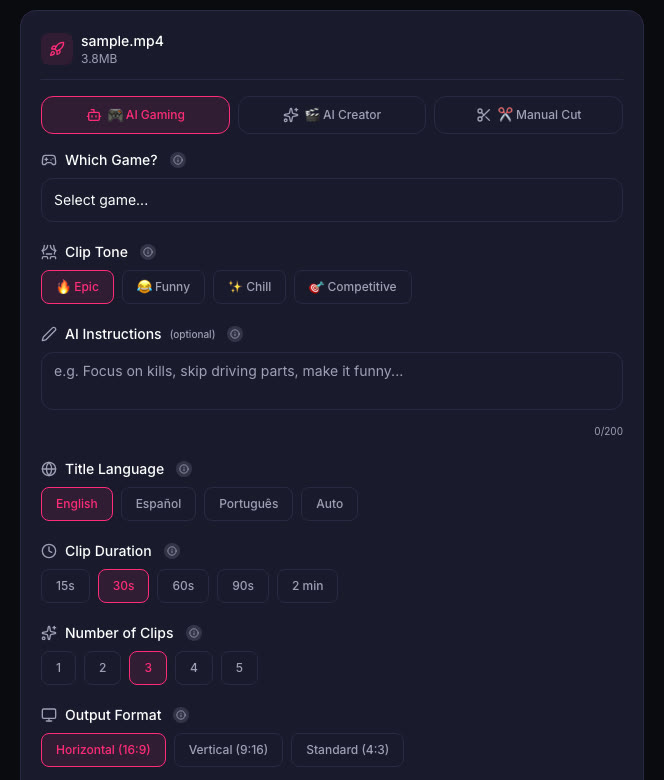
A few settings make GTA clips work better on Shorts and TikTok:
- Output format: Vertical (9:16) for Shorts, Reels and TikTok.
- Clip duration: 30 to 60 seconds. Short enough to hold attention, long enough for a full chase.
- Facecam Detection on if you record with a camera, so the vertical crop keeps your face in frame.
Quick checklist
- Set the recent gameplay length you actually use.
- Choose WebM for 4K or MP4 for compatibility.
- Decide on mic and party audio, and ask your party.
- Turn on PS App auto-upload for quick phone clips.
- Keep a USB drive ready for long or 4K recordings.
Sources
- PlayStation Support: Capture PS5 gameplay and screenshots
- PlayStation Support: PS5 game captures in PS App
- PlayStation Store: Grand Theft Auto VI
Written with AI assistance, then fact-checked and edited by Predrag Mitrovic.
Turn your next stream into Shorts
Upload a VOD or gameplay recording and ViceForge finds the best moments, cuts vertical clips and adds captions.
Clip a video with ViceForgeMore from GTA 6 News

Can You Monetize GTA 6 Clips on YouTube? What We Know
An honest answer: what YouTube's Partner Program requires, what Rockstar's policy says and does not say, and what reduces your risk with GTA VI clips.
How to Make a GTA 6 Funny Moments Compilation from Your VODs
Funny moments videos are a classic GTA format. How to collect moments across a week of streams, keep the pace up, avoid claims, and reuse the same moments as Shorts.
GTA 6 Launch Day Streaming Checklist
Everything to sort out before November 19: pre-load, capture settings, accounts, audio, VOD storage and a plan for clips. One list, in the order you need it.