GTA 6 Pre-Load Day Checklist: November 12 Setup for Streamers
November 12 is GTA VI pre-load day. Check your capture settings, clear storage, and test your broadcast setup before launch on November 19.
November 12 is pre-load day for GTA VI on PS5 and Xbox Series X|S. If you stream or clip your gameplay, the week before launch is the time to check your capture settings, clear storage, and test your broadcast setup. Here is what to do now so you can record and stream from the first hour.
Check your storage space
GTA VI pre-loads from November 12. The file size is not confirmed, but clearing space now means you will not be deleting old games at midnight. Check your PS5 or Xbox storage, move or delete what you do not need, and leave room for the install.
If you use a capture card or record to an external drive, check that drive too. A full drive mid-stream means lost footage.
Set your console capture settings
PS5:
- Press the Create button and pick a preset: Standard, Easy Screenshots, or Easy Video Clips.
- Decide the clip length. You can save the last 15 seconds up to the last hour. For clipping later, 15 to 30 minutes is enough without filling the drive.
- Turn off HDCP if you use a capture card. You find it in the PS5 HDMI settings.
Xbox:
- Press Share for a screenshot, hold Share for Record what happened.
- For 4K HDR clips longer than 30 seconds, you need an external drive. On the internal drive, 4K HDR clips are limited to 30 seconds. On an external drive, you can record up to 60 minutes.
- Set auto-upload to OneDrive if you want a backup. Go to Settings > Preferences > Capture & share.
Test a short recording now. Check the file, make sure it saved, and confirm the quality. If something is wrong, you have a week to fix it.
Plan your broadcast setup
If you stream directly from console:
- PS5 can broadcast to Twitch or YouTube. Xbox streams natively to Twitch only.
- For Twitch on PS5, you need two-factor authentication turned on.
- Test a short stream before November 19. Check the video quality, audio levels, and that your mic is working.
If you use a capture card:
- Confirm HDCP is off on PS5.
- Check your OBS or streaming software settings. For YouTube Live 1080p60, use H.264 at 6 to 17 Mbps, 2-second keyframes, and AAC audio at 128 kbps.
- Run a test stream to a private or unlisted channel. Watch the recording back and listen for audio sync issues.
Twitch VOD settings:
- Go to Creator Dashboard > Settings > Stream > VOD Settings and turn on Store past broadcasts. Without it, there is no VOD and no way to clip from the stream later.
- VOD retention is 7 days for most streamers, 14 days for Affiliates, 60 days for Partners. If you want to keep a VOD longer, download it or save it as a Highlight.
Prepare for clipping
Console clips:
- PS5 clips under 3 minutes and 1080p or lower can auto-upload to the PS App if your console is in rest mode with internet. 4K does not auto-upload. To move clips manually, go to Media Gallery > More > Copy to USB Drive.
- Xbox clips upload to the Xbox network cloud but are deleted after 90 days. Turn on OneDrive auto-upload for a longer backup.
Twitch clips:
- Clips are 5 to 60 seconds, cut from live or VOD. You can make them in Clips Manager, which also has landscape and portrait versions.
- If copyrighted music is in the VOD, Twitch mutes that part and deletes linked clips. Muting does not stop DMCA notices.
YouTube Shorts:
- You can edit your own public long video into a Short (up to 60 seconds) on mobile with Remix > Edit into a Short, or use Studio on desktop.
- Shorts can be up to 3 minutes long, but a Short longer than 1 minute with any Content ID claim is blocked worldwide. For music safety, keep Shorts at 60 seconds or less.
ViceForge:
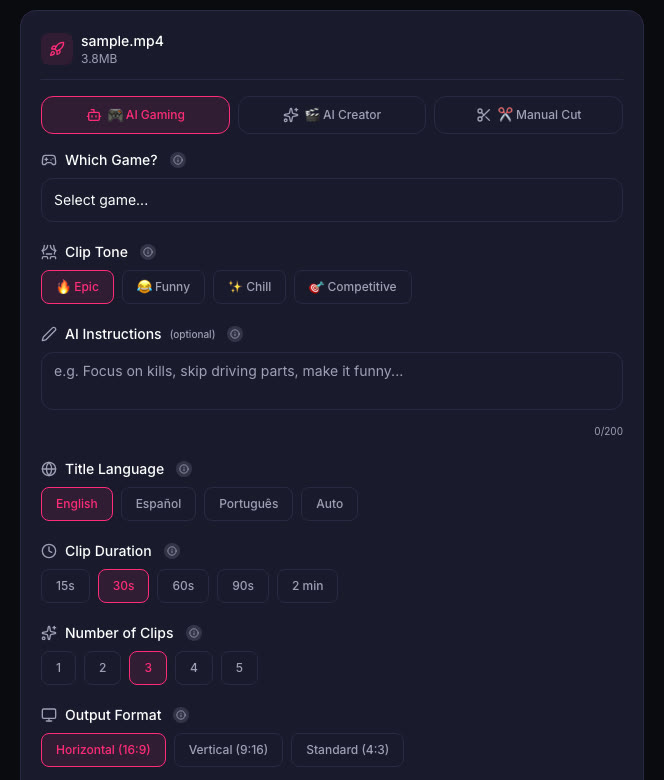
- ViceForge cuts clips from uploaded videos with AI. Pick AI Gaming mode, select the GTA game profile, and set your clip length and output format. Supported formats are MP4, MOV, AVI, and WebM.
- Vertical (9:16) output keeps your facecam in frame automatically. Captions are added to every clip.
- Upload your VOD or console recording after the stream, and you get multiple clips ready to post.
Quick checklist
- Clear storage on console and external drives
- Set console capture length and test a recording
- Turn off HDCP on PS5 if using a capture card
- Turn on Store past broadcasts on Twitch
- Test a short stream and check the recording
- Confirm OneDrive or PS App auto-upload if you want it
- Plan clip length (60 seconds or less for Shorts with music)
What Rockstar says
Rockstar's policy allows occasional, non-commercial use of its games in videos, asks creators not to post isolated cutscenes or leaked material, and keeps the right to remove content. Monetization of GTA VI videos is not spelled out in the policy.
Pre-orders on PlayStation Store and Rockstar Store include the Vintage Vice City Pack and 1 month of GTA+ until November 20. The Standard edition is $79.99, the Ultimate edition is $99.99.
Sources
- PlayStation Store, Grand Theft Auto VI
- Rockstar Store, Buy GTA VI
- PlayStation Support, Capture PS5 gameplay
- PlayStation Support, PS5 captures in PS App
- PlayStation Support, Stream PS5 gameplay
- Twitch Help, Video on demand
- Twitch Help, Copyrighted audio warnings
- YouTube Help, Edit into a Short
- YouTube Help, Shorts over 1 minute and Content ID
- YouTube Help, Live encoder settings
- ViceForge Pricing
Written with AI assistance, then fact-checked and edited by Predrag Mitrovic.
Turn your next stream into Shorts
Upload a VOD or gameplay recording and ViceForge finds the best moments, cuts vertical clips and adds captions.
Clip a video with ViceForgeMore from GTA 6 News
Can You Monetize GTA 6 Clips on YouTube? What We Know
An honest answer: what YouTube's Partner Program requires, what Rockstar's policy says and does not say, and what reduces your risk with GTA VI clips.
How to Make a GTA 6 Funny Moments Compilation from Your VODs
Funny moments videos are a classic GTA format. How to collect moments across a week of streams, keep the pace up, avoid claims, and reuse the same moments as Shorts.
GTA 6 Launch Day Streaming Checklist
Everything to sort out before November 19: pre-load, capture settings, accounts, audio, VOD storage and a plan for clips. One list, in the order you need it.