GTA 6 Launch Week Content Schedule: Plan Your Clips Now
Map your GTA VI content calendar from pre-load to launch week. Console capture setup, clip ideas, and what to avoid with music and cutscenes.
GTA VI releases November 19, 2026 on PS5 and Xbox Series X|S. Digital pre-orders can pre-load from November 12. Here is how to plan your content calendar from pre-load through the first week, so you can focus on playing when the game goes live.
Why plan ahead
A content calendar keeps you organized. When you map out your upload schedule before launch, you know what to record, when to cut clips, and when to post. You avoid scrambling for ideas while you are trying to play.
Write down the days you will stream, the types of clips you want to post, and the platforms you will use. A simple checklist is enough.
Pre-load day: November 12
Digital pre-orders can pre-load starting November 12. Physical editions contain a download code, so all players download the game.
What to post: A short clip showing the download screen, your reaction, or a quick message to your audience that you are ready for launch. This is the first GTA VI content you can share.
Where to post: Instagram Reels, YouTube Shorts, TikTok. Keep it under 60 seconds.
What to record: Nothing from the game yet, but you can set up your console capture settings now.
Launch day: November 19
The game unlocks on November 19.
What to post: First impressions. A 30 to 60 second clip of your reaction to the opening, the city, or the first mission you play. Talk over the gameplay so viewers hear your voice.
Where to post: YouTube Shorts, Instagram Reels, TikTok. Post within a few hours of starting the game.
What to record: Everything. Turn on your console's background recording so you can save moments after they happen. On PS5, press the Create button and choose Save Recent Gameplay. On Xbox, hold the Share button to record what just happened.
Days 2 to 4: November 20 to 22
What to post: Action clips. Chases, crashes, stunts, close calls. These are short, exciting moments that work well as vertical clips.
Where to post: YouTube Shorts, Instagram Reels, TikTok. One or two clips per day.
What to record: Gameplay with your commentary. If you are streaming, save the VOD so you can cut clips from it later.
Days 5 to 7: November 23 to 25
What to post: Longer highlights or a compilation. A 60 to 90 second clip that shows your best moments from the first few days, or a funny moment with context.
Where to post: YouTube Shorts, Instagram Reels. You can also post a longer horizontal clip to YouTube as a regular video.
What to record: Keep streaming and saving clips. By now you have enough footage to pick the best moments.
Console capture setup
Set up your console capture before launch so you do not miss anything.
PS5
Press the Create button for the capture menu. The Create button has three shortcut presets: Standard, Easy Screenshots and Easy Video Clips.
You can save the last 15 seconds up to 1 hour. You can also start a new recording up to 1 hour long.
Auto-upload to PS App: Videos under 3 minutes and 1080p or lower upload automatically when your PS5 is in rest mode with internet. They stay for 14 days. 4K does not auto-upload. You do not need PS Plus.
USB transfer: Media Gallery > More > Copy to USB Drive.
Capture card: Turn off HDCP in the PS5 HDMI settings.
Xbox
Press the Share button for a screenshot. Hold the Share button to record what just happened.
4K HDR on internal drive: clips up to 30 seconds. External drive: clips up to 60 minutes.
Cloud: Xbox network cloud captures are deleted after 90 days.
OneDrive auto-upload: Settings > Preferences > Capture & share.
Streaming and VODs
If you stream on Twitch, turn on "Store past broadcasts" in Creator Dashboard > Settings > Stream > VOD Settings. Without it, there is no VOD and you cannot make Highlights or Clips from your stream.
VOD retention is 60 days for most Partners, Prime, and Turbo users, 14 days for Affiliates, and 7 days for everyone else.
Download your VOD from Creator Dashboard > Content > Video Producer > three dots > Download. If parts are muted, the download is also muted.
On YouTube, you can clip your own live stream or VOD in Studio: Content > video > Clips and Shorts > Create clip or Short.
Cutting clips from long videos
When you have a full stream or a long recording, cutting clips by hand takes time. ViceForge turns long videos into short clips with AI.
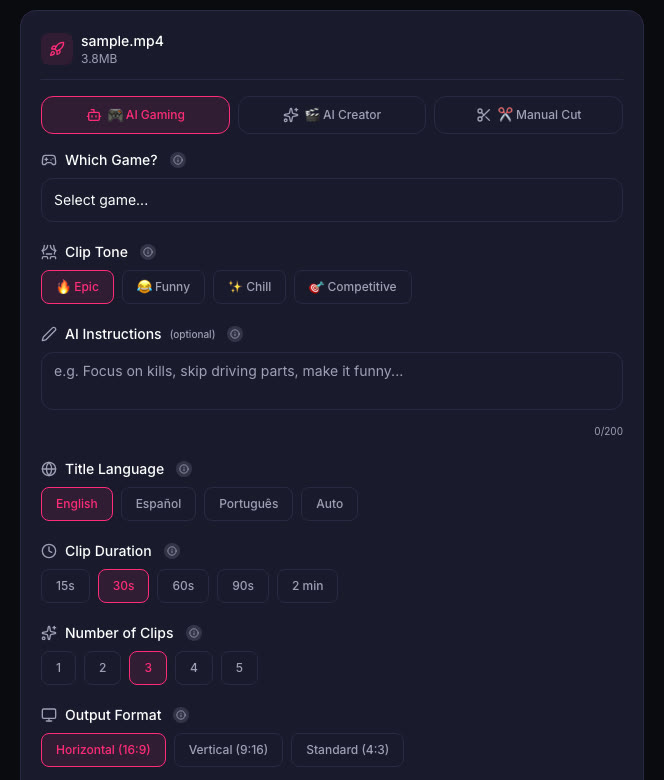
Upload your video in MP4, MOV, AVI, or WebM format. Pick AI Gaming mode and select the GTA game profile. The AI finds action, kills, chases, crashes, and big reactions. You choose the clip length and output format (Horizontal, Vertical, or Standard). Captions are added automatically, and with Vertical output the crop keeps your facecam in frame.
The Free plan gives you 15 second clips with 2 caption styles. Paid plans offer longer clips: 60 seconds on Gamer Pro, 90 seconds on Creator Pro, 2 minutes on Creator Elite. Paid plans also include 5 caption styles. See pricing for details.
What to avoid
Radio music: If you want to be safe, turn the radio down or off during key moments. Licensed music in games can be claimed by the music owners on YouTube, and Twitch mutes VOD parts with copyrighted music and deletes linked clips.
Long Shorts with claims: A YouTube Short longer than 1 minute with any Content ID claim is blocked worldwide. Keep Shorts at 60 seconds or less if you are not sure about the audio.
Plain cutscenes: Rockstar's general policy asks creators not to post isolated cutscenes. Focus on gameplay with your commentary.
Quick checklist
- Set up console capture presets (PS5 or Xbox).
- Turn on "Store past broadcasts" on Twitch if you stream.
- Write down your upload schedule: which days, which platforms.
- Decide on clip length: 30 to 60 seconds for Shorts, Reels, TikTok.
- Plan to talk over gameplay so clips are yours.
- Test your capture or streaming setup before November 12.
Sources
- PlayStation Store, Grand Theft Auto VI
- Rockstar Store, Buy GTA VI
- PlayStation Support, Capture PS5 gameplay
- PlayStation Support, PS5 captures in PS App
- Twitch Help, Video on demand
- Twitch Help, Copyrighted audio warnings
- YouTube Help, Clips and Shorts in Studio
- YouTube Help, Shorts over 1 minute and Content ID
- YouTube Help, Video game content and Content ID
- Instagram, Reels
Written with AI assistance, then fact-checked and edited by Predrag Mitrovic.
Turn your next stream into Shorts
Upload a VOD or gameplay recording and ViceForge finds the best moments, cuts vertical clips and adds captions.
Clip a video with ViceForgeMore from GTA 6 News
Can You Monetize GTA 6 Clips on YouTube? What We Know
An honest answer: what YouTube's Partner Program requires, what Rockstar's policy says and does not say, and what reduces your risk with GTA VI clips.
How to Make a GTA 6 Funny Moments Compilation from Your VODs
Funny moments videos are a classic GTA format. How to collect moments across a week of streams, keep the pace up, avoid claims, and reuse the same moments as Shorts.
GTA 6 Launch Day Streaming Checklist
Everything to sort out before November 19: pre-load, capture settings, accounts, audio, VOD storage and a plan for clips. One list, in the order you need it.