Streamer Awards 2026: How to Clip Your Moment
The Streamer Awards air today on Twitch and YouTube. Here is how to catch the best moments and what format works for each platform.
The Streamer Awards 2026 air today on Twitch and YouTube. If you stream, watch parties, live reactions and acceptance speeches are all moments you can turn into clips while the event is still trending. Here is how to catch the best moments and what format works for each platform.
When and where to watch
The Streamer Awards take place today, November 12, 2026, in Los Angeles. QTCinderella and Caroline Kwan host the ceremony.
- Red carpet: 5:30pm ET (2:30pm PT / 10pm GMT)
- Main ceremony: 8:30pm ET (5:30pm PT / 1am GMT)
Watch live on QTCinderella's Twitch or YouTube channel.
What to clip
IShowSpeed, Jynxzi and Kai Cenat lead the nominations with four each. IShowSpeed is defending his Streamer of the Year title after winning in 2024 and 2025.
| Moment | Why it works |
|---|---|
| Award announcements | Reactions from nominees and chat |
| Acceptance speeches | Quotes, thank-yous, funny lines |
| Red carpet interviews | Quick takes, outfit reveals |
| Your own live reaction (if you stream a watch party) | Your face and voice over the stream |
Fan voting closed on October 31, with public votes accounting for 70% of the results and an industry panel determining the remaining 30%.
Clip format by platform
Twitch: Horizontal (16:9). Twitch Clips are 5 to 60 seconds. If you stream your watch party, download the VOD after the event and clip it later for longer moments.
YouTube Shorts: Vertical (9:16), up to 3 minutes. A Short longer than 1 minute with any Content ID claim is blocked worldwide. If the broadcast has copyrighted music, keep your Shorts under 1 minute.
Instagram Reels: Vertical (9:16). Reels can be up to 20 minutes, but over 3 minutes are not recommended to new audiences.
TikTok: Vertical (9:16).
Turn your watch party into clips
If you stream your reaction to the awards, download your VOD after the event. Upload it to ViceForge, choose AI Creator for talk and reaction videos, and pick Vertical (9:16) for Shorts and Reels or Horizontal (16:9) for YouTube and Twitch. The AI finds your reactions, quotes and hype moments, and adds captions automatically.
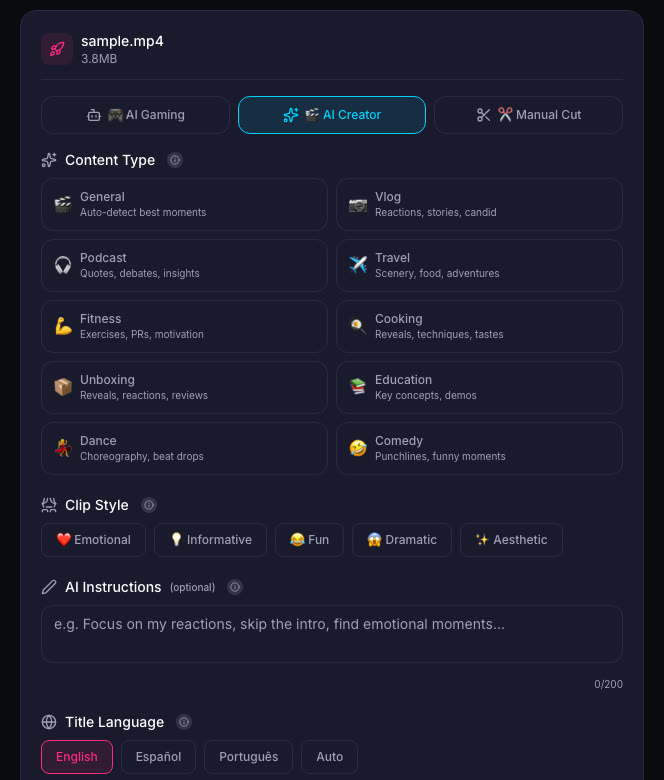
AI Reads Speech (Creator Pro and Creator Elite) listens to what you say and picks clips based on funny lines, strong statements and reactions. Turn it on in the upload settings for better talk clips.
Quick checklist
- Watch live on QTCinderella's Twitch or YouTube.
- Clip announcements, speeches and reactions as they happen.
- Keep Shorts under 1 minute if the broadcast has music.
- Download your watch party VOD and upload it to ViceForge for clips.
- Post clips the same night while the event is trending.
Sources
- Dexerto: Streamer Awards 2026: How to watch and nominees
- YouTube Help: Shorts over 1 minute and Content ID
- Instagram: Reels
Written with AI assistance, then fact-checked and edited by Predrag Mitrovic.
Turn your next stream into Shorts
Upload a VOD or gameplay recording and ViceForge finds the best moments, cuts vertical clips and adds captions.
Clip a video with ViceForgeMore from Guides
Twitch and Kick Drop GTA 6 Codes Daily: How to Claim
Kick has 10,000 codes through December 7, Twitch drops daily from launch. Here is how to claim on each platform and what to tell your viewers.
YouTube's GTA 6 Hub: What Streamers Should Post Now
Here is what you can post now and how to use the new features to reach YouTube's GTA 6 audience.
Adobe Max 2026: Generative Remove, Sound Tools and Firefly Updates
Adobe announced new AI tools for Premiere, Photoshop and Lightroom at Max 2026, including object removal and sound separation for editors.