PS App Auto-Upload for GTA 6: What Actually Works
PS5's auto-upload feature works for videos under 3 minutes and 1080p or lower. Here is what auto-uploads, what does not, and how to set it up.
PS5's auto-upload feature works for videos under 3 minutes and 1080p or lower. Here is what auto-uploads, what does not, and how to set it up.
What auto-uploads to PS App
:
- Gameplay videos under 3 minutes long that are not 4K. Videos at 1080p or lower are uploaded. 4K videos are not uploaded.
- Screenshots taken from the Create Menu or Create button shortcuts.
The captures are kept for 14 days after they are created on your PS5. Trophy moments and Activity Challenge auto-captures are not uploaded.
What does not auto-upload
- Videos longer than 3 minutes. If you record a 5-minute chase, it will not auto-upload. You can manually upload it or copy it to USB.
- 4K videos. Even if the video is under 3 minutes, 4K resolution blocks auto-upload.
- Captures made before you enabled the feature. Only new captures are uploaded.
How to enable auto-upload
- Open PlayStation App and select Library.
- Go to Captures and select Enable.
- On your PS5, go to Settings > Captures and Broadcasts > Captures.
- Turn on Game captures on PlayStation App.
Your PS5 must be in rest mode with the Stay Connected to the Internet setting enabled. No PlayStation Plus subscription is needed.
How to manually upload longer clips
If a clip is over 3 minutes or in 4K, you can still upload it manually:
- On your PS5, go to your games home and select Media Gallery.
- Highlight the capture and press the options button.
- Select Upload to PlayStation App.
Manually uploaded clips are also kept for 14 days.
How to view and share your clips
Once auto-upload is enabled, your clips appear in PlayStation App under Library > Captures. From there you can:
- Download the clip to your phone.
- Share it to a party via Game Base.
- Share via another app on your phone.
What this means for GTA 6 clips
If you record a longer session or capture in 4K, you will need to manually upload or copy to USB.
Consider the radio music in your clips when planning to share them. See GTA 6 Radio Music and Copyright Claims for how to plan around that.
Quick checklist
- Turn on auto-upload in PS App and PS5 settings.
- Leave your PS5 in rest mode with internet enabled.
- Keep clips under 3 minutes and at 1080p or lower for auto-upload.
- Manually upload or copy to USB for longer or 4K clips.
- Download clips from PS App within 14 days.
Turn clips into Shorts
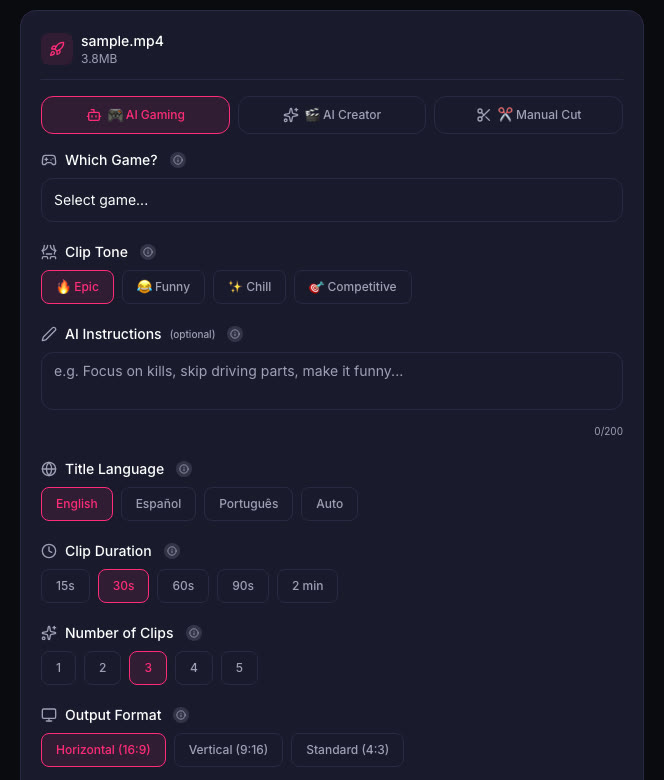
When you have a clip on your phone, you can edit it into a Short or post it as is. If you want to cut multiple clips from a longer recording, upload the video to ViceForge. Pick the GTA game profile, set the clip length to 30 to 60 seconds, and the AI will find the best moments.
Sources
Written with AI assistance, then fact-checked and edited by Predrag Mitrovic.
Turn your next stream into Shorts
Upload a VOD or gameplay recording and ViceForge finds the best moments, cuts vertical clips and adds captions.
Clip a video with ViceForgeMore from GTA 6 News
GTA 6 Launch Trailer: What Streamers Missed
Here is what the trailer shows and how to capture those moments for your audience.

GTA 6 Hidden Details: What Devs Added That Even Rockstar Missed
Rockstar gave GTA 6 developers freedom to add features on their own. Not even studio heads know everything in the game. Here's how to find the details first.
GTA 6 Dating System: What Streamers Should Know
6% of British adults in a YouGov poll called dating in a video game cheating. Here is what that means for your GTA 6 stream and clips.