Instagram's AI Effect Builder: Make Custom Filters from Text
Instagram's Effect Builder generates custom filters for Stories with AI prompts. Here's how to use it and when custom filters actually help your clips.
Available now for US residents over 18, it lets you describe a filter idea in text, attach style references, and preview the result on your own photos. No design skills needed. Here's how to use it, what it means for your vertical content, and when custom filters actually help your clips.
How to use Effect Builder
- Go to Effect Builder on the web (US only, 18+). The source does not provide the URL.
- Type a prompt describing the filter, for example "Make a filter that turns photos into comic book pages".
- Optionally attach reference images for style.
- Upload your own photos to preview the effect.
- Ask for changes in follow-up prompts.
Instagram's AI can rewrite your prompt into detailed style requests covering color palette, lighting and more. In testing, a one-line prompt and its AI-rewritten version produced nearly identical results.
Submit your filter to Instagram
After you preview the filter, you can submit it directly from Effect Builder. Instagram reviews every effect for safety before it goes live. Once approved, the filter shows up in Instagram Stories for anyone to use. When someone uses your effect, Instagram links back to your profile.
When to use custom filters in your clip strategy
Custom filters work for:
- Branding a series. Consider using a filter to create a unified visual style across your Reels or Stories.
- Themed challenges. Launch a filter for a challenge or event, let your audience use it, and collect the tagged posts for a compilation.
- IRL and talk content. Consider using a filter to make phone footage look more polished without heavy editing.
Custom filters do not work for:
- Gaming clips. Consider whether overlays might interfere with the game's visuals.
- Clips that need to be fast. Consider whether the extra step fits your workflow.
Filters vs captions and facecam
Captions and a visible facecam do more for a gaming clip than a filter. A filter that changes the look of the game or covers part of the screen can hurt both.
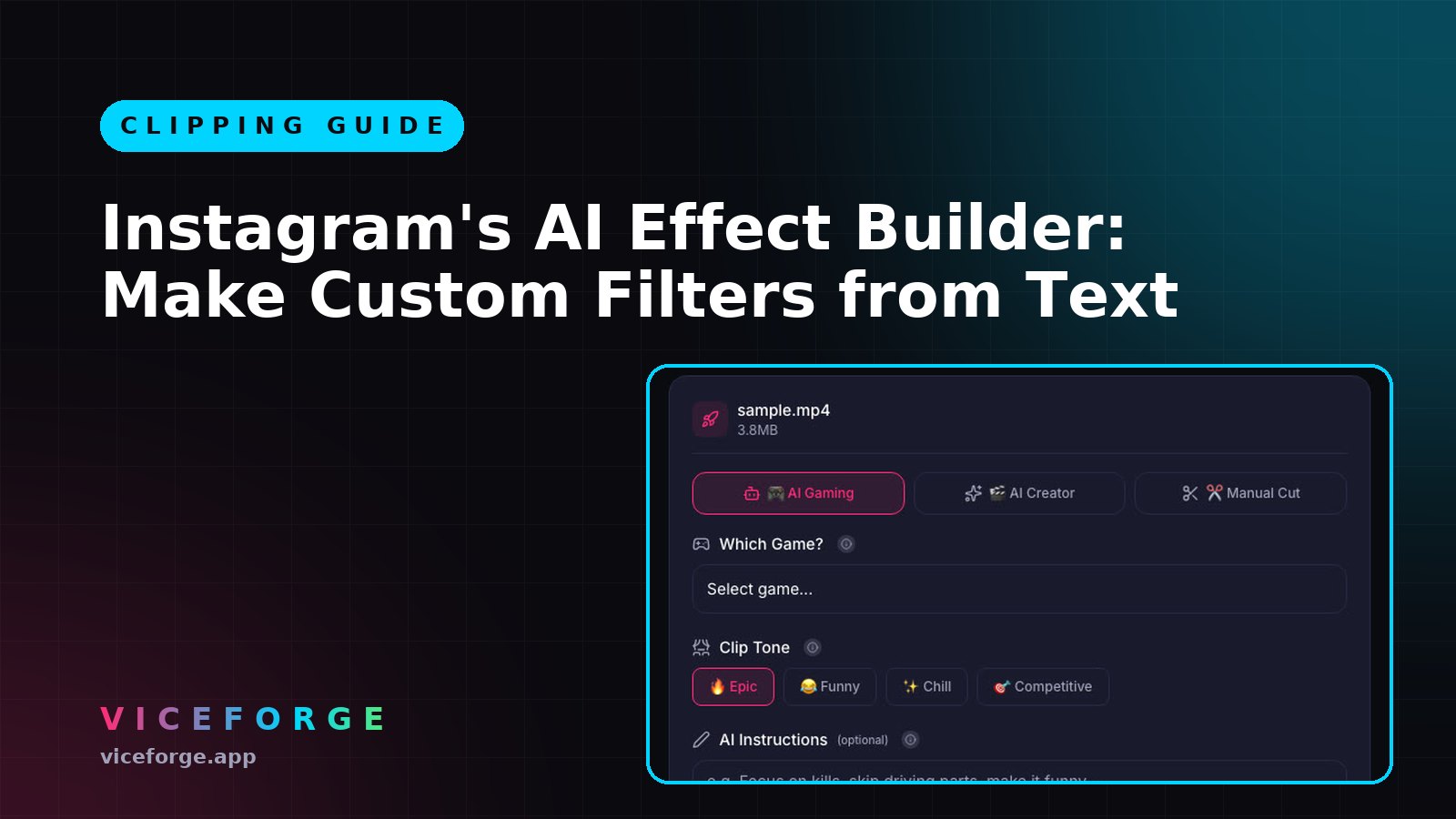
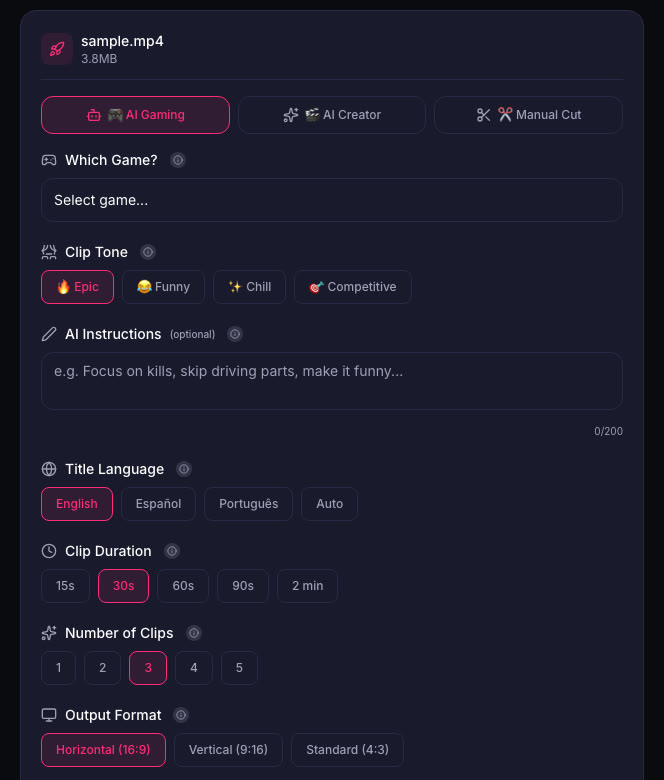
If you want a consistent look, pick a caption style and stick with it. Upload your VOD to ViceForge, choose AI Gaming, and every clip comes out with the same caption style and the facecam kept in frame.
When a filter makes sense
Use a filter when the aesthetic is the content. A filter that turns your face into a cartoon or adds a specific vibe to your IRL footage can be the hook. But for gaming clips, the game is the aesthetic. The filter is decoration.
If you are testing a custom filter, preview it on a few clips before you apply it to a whole batch. A filter that looks good on a still photo can be distracting on a 30-second clip with movement and captions.
Sources
- The Verge: Instagram's AI Effect Builder
- Instagram: Reels
Written with AI assistance, then fact-checked and edited by Predrag Mitrovic.
Turn your next stream into Shorts
Upload a VOD or gameplay recording and ViceForge finds the best moments, cuts vertical clips and adds captions.
Clip a video with ViceForgeMore from Guides

Twitch and Kick Drop GTA 6 Codes Daily: How to Claim
Kick has 10,000 codes through December 7, Twitch drops daily from launch. Here is how to claim on each platform and what to tell your viewers.
YouTube's GTA 6 Hub: What Streamers Should Post Now
Here is what you can post now and how to use the new features to reach YouTube's GTA 6 audience.
Streamer Awards 2026: How to Clip Your Moment
The Streamer Awards air today on Twitch and YouTube. Here is how to catch the best moments and what format works for each platform.